Matthew Lang avatar

Tools

Software tools, utilities, and the things that make work easier.

I am really intrigued by Enkihost, a new host for Ruby applications by Albert Oliva. Pricing seems very competitive, but I haven’t run an application there yet, let alone five. It’s certainly cheaper than my current DigitalOcean and Hatchbox setup.

I updated Firefox to the new design today, and it’s nice to see it looking modern once again. I’m also glad to see Compact Mode is back, now with an auto option for smaller screens.

Laurel: a weekend Hanami project

Over the weekend, I wanted to build something with Hanami. I wanted to build something with Hanami more as a learning exercise than anything else. I had a bookmark manager written in Rails that has been languishing on the side, so I thought I would build something a bit more functional using Hanami. I called it Laurel.

Bookmarks usually build up for me. I wanted to build a way to resurface bookmarks so they can be acted on. It’s something I didn’t have in the previous bookmark application. I also didn’t want to be distracted by using background processing. Any methods that calculate ranks or anything else like that will be handled during the request.

This isn’t my first Hanami project. I built a couple of smaller applications a couple of years ago, but I never kept them because they were just a way to see what Hanami can do.

Getting the project started was familiar. Typing bundle exec hanami new is almost the same as kicking off a new Rails project. Once I had a blank application set up, I started looking into the code. It has similarities to Rails, but also differences.

I’m not going to delve into the experience of using Hanami or compare it to Rails, but I enjoyed using it, and the developer experience is good.

As for the project’s goal, I eventually finished it on Sunday night. It includes the following features:

  • Capture: add/edit, tag, import
  • Curate: the digest page, Elo comparisons, evergreen marking, archiving, snoozing or ignoring bookmarks
  • Decay: the HN-style ranking score

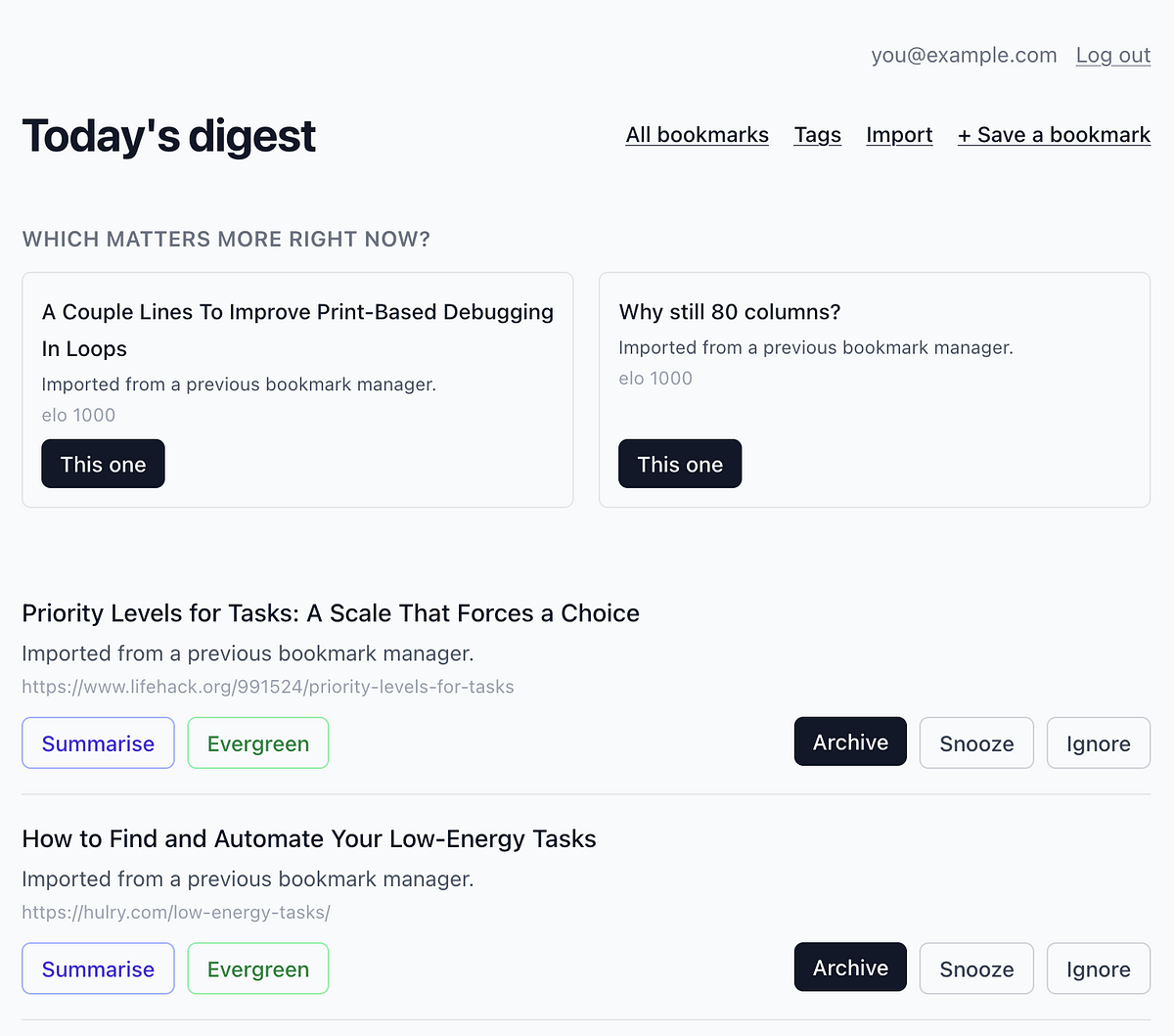
Bookmark digest interface showing a priority comparison between two articles and a list of saved bookmarks with action buttons.

The digest page is the real workhorse of the application. Here you can decide which of the two bookmarks is more important and also action other bookmarks that appear on this page. Being able to action bookmarks over time with the archive, snooze or ignore buttons is more helpful to me and actively curates the collection.

The difficult part was deploying the application to Hatchbox. I originally had an error in the application that appeared only in the production environment, not the development environment. I eventually resolved this issue, but I still seem to have a deployment issue: it requires a restart after deployment, and I’m sure this is a mistake on my part when setting up the application.

I’m going to definitely keep using this, and over the next few weekends, I’ll be adding more features and hopefully resolving that deployment issue on Hatchbox as well.

Bookmarks that come back

I started working on a new bookmark manager tonight using the Hanakai toolset. It comprises the Hanami framework, Dry validation library and the Rom persistence toolkit.

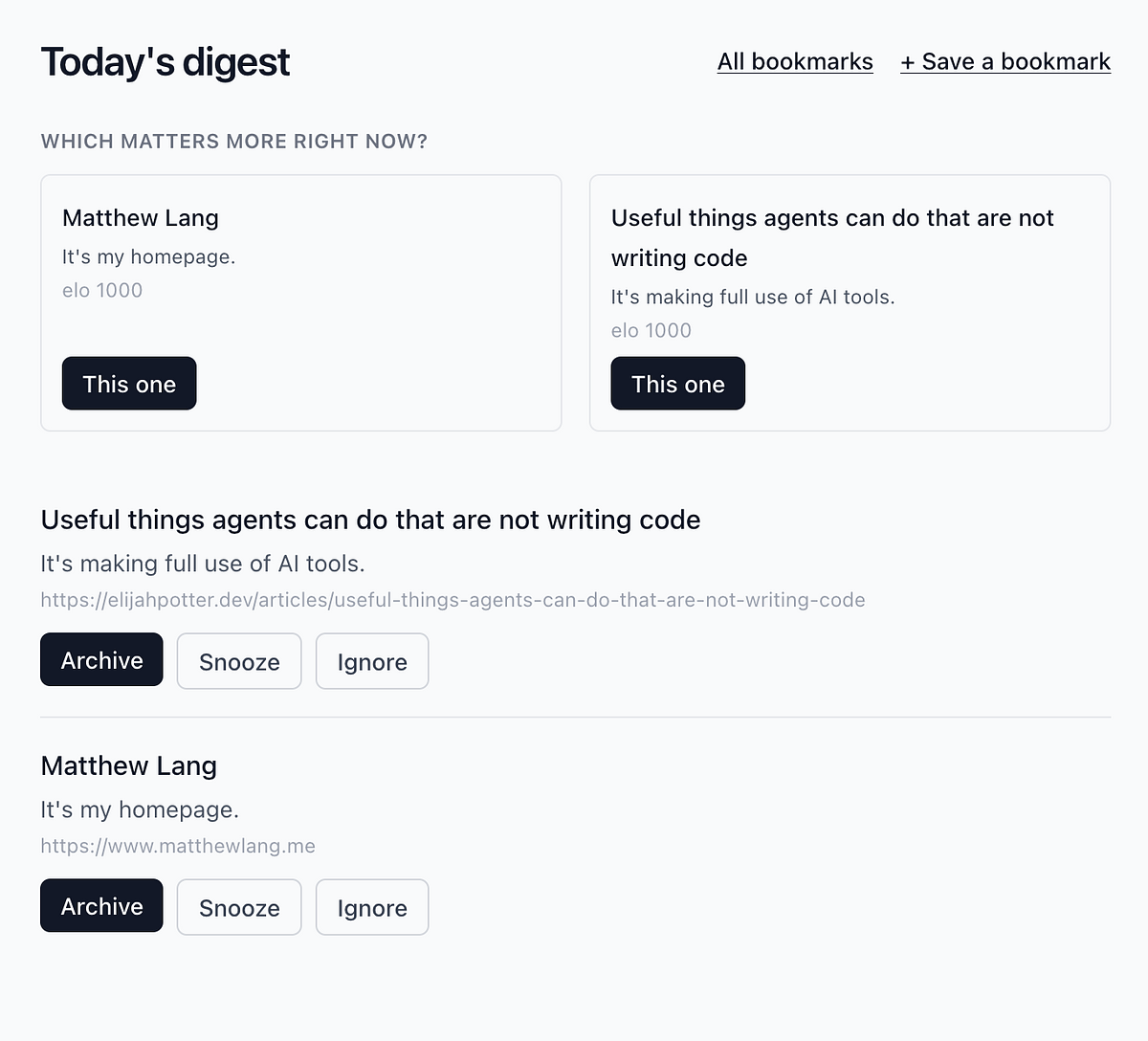
A bookmark digest interface showing an Elo-ranked comparison of two bookmarks with archive, snooze, and ignore actions below each entry.

This little project has two goals. The first is to learn Hanakai. Ruby on Rails is a reliable web framework, and I’ve used it for over 15 years, but I want to try something different. The second is to try something different with a bookmark manager. Instead of just saving bookmarks and forgetting about them, I’m going to try to build a bookmark manager that resurfaces bookmarks over time. It will do this on a schedule and based on bookmarks that fit the criteria for being resurfaced. The idea is that, over time, you’ll weed out anything that isn’t relevant and be left with only the bookmarks that matter.

I initially envisioned this as an email workflow, but I’m going to keep it simple and display the decision in the web app. Email would have meant building the sending infrastructure, but I didn’t want to deal with that this weekend.

The fundamentals are already in place. I will be dipping in and out of this over the weekend with a view to having something to deploy on Sunday night. The final decision screen will be for me only, but I’ll follow this blog post with more information on how I got on.

I’m trying to work out a way of keeping some of my notes in Obisidian in sync with a section of my blog. There is a benefit to doing this, but the content is slightly different for each. For the moment, I’ll manually pull Obsidian files into my blog, but in the future I hope to automate this.

Resetting outside of the calendar

I’m resetting my systems right now. It’s a chance to review a few of the tools I’m using and decide what works and what doesn’t.

Why now? Goals can wait for a date. A year gives you a clean line to measure against. Tools can’t. A broken system costs you something every day it stays broken, and there’s no reason to keep paying that cost until the calendar says it can change.

My experience with digital tools hasn’t been great. I find they add friction instead of removing it. So, what’s mostly changing is a switch from digital to analogue.

I’ve been using a loose version of bullet journaling for my workday for most of the past two years, and it’s worked quite well, so it makes sense to expand it into my own side projects and a few other things.

Fix it when it’s broken. Not when the calendar says you’re allowed to.

I finished migrating one account over from Sourcehut to GitLab. Most of the work was for Dailymuse to ensure it kept the CI steps I had on Sourcehut and that the deployment process worked. I moved all the issues over as well, but there weren’t too many. I can get on with shipping some features now!

At PinPerfect tonight with Drew. He’s practising his golf, while I am rewriting the Sourcehut integration for my PostPress application so that it works with GitLab instead. If you’re reading this post, then it is working!

Moving to GitLab

Tonight I moved all my personal projects over to GitLab following Sourcehut’s changes to their terms of service regarding LLMs. I’m still not entirely convinced that my projects are in breach of these terms, but I’m making the move anyway.

I have some changes to do to my Rails application that I use to publish posts and upload images to my blog, so I am having to write manual posts at the moment, but it shouldn’t take me long to get this application updated to work with GitLab.

I still have another account to move from Sourcehut to GitLab, but I can take my time with that one.

Time for a new forge

I need to find a new forge now that Sourcehut is prohibiting the use of LLMs. There’s an interesting discussion about this on Lobsters.

I’m still trying to assess whether I am in breach of this with the two paid accounts I have at Sourcehut. The change to the terms is minimal, but I am not entirely convinced that I am breaking the terms and conditions of their service. With these two accounts, I have used LLM tools to generate code that, for the most part, I have amended before committing it.

I also have a repo for a web application I used to publish the content for this blog, which calls on an external LLM to generate alt text for images.

But better to be safe than sorry, so I think I will end up moving these accounts elsewhere. GitHub is out, so I am looking at GitLab again and perhaps Codefloe, which has the benefit of being hosted in Europe, but is only supported by donations. Self-hosting isn’t an option for me. I don’t have the time to maintain my own forge.

A shame that I am making this move, because I like the Sourcehut product. It’s minimalist and does everything I need it to.

For the first time in a long time, I am seriously giving some thought to changing my RSS reader from Feedbin to something else. I don’t know where I saw the original link posted, but Gobbler might tick all the boxes for what I need.

I have been using the Zed text editor for such a long time now. The nightmares of using VS Code are now distant memories.

So what do I go and do? Install Vim again. This time, it’s the Vim Classic version. A fork of Vim 8.x, maintained without the use of generative AI tools.

The SaaS desktop app

I’ve been looking at several PostgreSQL clients as I migrate my local development databases away from Docker containers and back to a native PostgreSQL installation.

As I evaluated several desktop apps to manage these databases, I was disappointed to find that many require a monthly subscription.

The subscription model makes sense for server-dependent software. The server is part of how the product works and is often a key component. The product might use the server to sync information between devices or to process information in the background. The subscription model covers the ongoing costs of running and maintaining the servers on which the product depends.

Why a subscription model for a desktop app though? In most cases, the desktop app runs on your own hardware. In the case of a PostgreSQL client, it can open databases that exist on my laptop or even on another remote server, but the product itself doesn’t need a server to do this.

The justification is revenue predictability. One-time purchases tend to spike at launch and taper off, making it hard to forecast earnings or plan for the future. A subscription smooths that out.

I get why developers go down this route. Predictable revenue is easier to build a business around than the feast-and-famine cycle of one-off sales. But predictability is a benefit to the developer, not a justification rooted in the product itself. A $20/month subscription for a desktop app will cost $240 a year, every year, for software whose core functionality was largely complete on day one.

There’s a better model from back in the day before subscriptions. A one-time purchase with an optional paid upgrade for major versions, the approach taken by apps like Postico and TablePlus, gives the developer ongoing revenue tied to actual new work and gives the consumer a cost that reflects what they’re actually getting. If the subscription model is justified by ongoing server costs or continuous development, fine. But if it’s just a pricing decision dressed up as a product decision, it’s not a product that I think I will give my money too.

Dedicated devices

Over the last year, a line has been forming between my laptop and my phone. And it became really clear last week when I tried out Obsidian Sync for a few days.

I thought it would be good to run Obsidian on my phone as well as my laptop, so I set up Obsidian Sync, got the remote vault working with my local vault, and set it up on my phone. I must admit, it was tricky to get my local vault up and running with it, but that wasn’t the reason why I cancelled it.

After a few days of use, I found I didn’t like using my phone to interact with Obsidian. I preferred a bigger screen, and so, I found myself reaching for my laptop more during this time. The sync feature wasn’t the problem. Trying out Obsidian Sync solved a different question. Which device do I want to use? The answer was obvious: the laptop, almost every time.

It was from this point that the divide between phone and laptop was clear.

My laptop is for head-down work. Coding, writing, researching. Anything that requires me to spend more than a few minutes on a single task. Anything like that and I use the laptop. There are two benefits to this.

The first is that the laptop is a dedicated workhorse. There are very few social media applications on it, so notifications are infrequent.

The second is that I no longer require as many app subscriptions. Many subscriptions are based on the premise that they can sync your information between devices. With just one device, that cost disappears. And given that just about everything is a subscription these days, that’s not a bad thing.

For everything else I do, and there’s not much left thankfully, there’s my phone.

I use it mostly for messaging family and friends as well as for golf club-related comms. I use it to arrange teams matches, organise competitions for the club’s junior section and organise other junior events.

I do use social media on my phone as well, but I keep my interaction light there. Reddit is still a good source for many things. I’m more of a lurker on Instagram. I prefer to share most of my photos on my blog rather than on Instagram. Then there’s BlueSky and Mastodon for news.

There’s one exception to the laptop rule. I have iA Writer installed on my phone and my laptop. Why? Just for when the need arises for putting some words down and I’m away from my laptop. For everything else, though, the divide between them is clear: each has its own dedicated use.

It’s taken me until I am almost 50 years old to get to this point and recognise that each device has its purpose. It’s taken a while to get here, but at least I have arrived. Better late than never.

Digital wandering

Every few months, I start to question the tools and processes I use to build a couple of side projects. It invariably stems from at least one of the following questions:

  • Is there a better way of doing this?
  • Are there better tools than the ones I am currently using?
  • Will I be better off with these new tools?

What follows is a process that leads me right back to the very beginning. I view it as a curse, and it is in a never-ending loop.

Here’s how it works.

I am wondering if the processes that I am using are working for me. This usually happens between tasks when I think something isn’t quite right. I might have dropped the ball on something, or I haven’t checked in on some code I’ve been writing for a few days. Simply put, I have lost my place. It’s at this point that I start to wonder if there are better tools or apps I could be using.

A few days go by as a gremlin sits in the back of my brain, rewiring my thoughts in favour of how a shiny new tool would solve my woes. After a week, I start to look at different apps and products that will get the job done better. After a couple of weeks, I sign up for one or two apps I may or may not have used before and start trying them out alongside my existing processes. After another week, I conclude that these apps are not going to work for me and delete their accounts.

I then go back to my original tools and find the fault is actually me, not what I am using.

A few weeks later, and the whole process starts again.

So what gives? Why do I put myself through the cycle of doubt and time-wasting?

Reading back what I just wrote at the start of this post, it’s clear that even the slightest break in the routine of progress has me questioning what I use and how I use it. And to be honest, that break in routine is usually me procrastinating or external factors breaking my planned time on something.

I’m sure I’m not alone in this cycle, and it was probably more of a thing back in the day, when we had a new todo app or task manager released every month, and everyone wanted to use the latest and greatest app, but didn’t really know why.

Over the past five years, I can count on both hands the number of times I have tried Todoist and Basecamp in vain attempts to find that golden feature I have missed. I know full well it’s not there, but clicking about through the apps is probably the one highlight from this cycle.

It’s taken me many cycles to get to where I am with the tools I use for web development and writing, too. Many subscriptions to different products and apps, and what has this many years of digital wandering taught me?

It’s the analogue tools that keep sticking. The notebook, the pens, the index cards. Despite all the technological advancements, and with the age of artificial intelligence and LLMs marking a major change in the world, I still fall back on my trusty notebooks. I think for me, they’re more robust than digital tools; they have an offline mode and, finally, they’re a damn sight more interesting to look at than a screen.

Don’t get me wrong, I still use several tools and apps to support my web development, where a notebook can’t be used. I use issue-tracking software to manage a backlog of features and bugs. I use LLMs to act as pairing buddies when working on features. I have digital tools that have their place, and analogue tools that have theirs.

I think I’ve finally found the balance between the two, and I should accept that this works.

One of my biggest Obsidian peeves is that the graph view doesn’t retain the settings you change. Yes, some plugins do this, but surely there’s been discussions about persisting these settings without a plugin.

One of the newest things that many notes apps are doing with Markdown is callouts. They add context to your notes. I first came across these in Bear, but good to see that Obsidian also supports callouts.

Moving on from GitHub

It’s been quite a week for GitHub and not in a good way.

It’s no secret that GitHub outages have been more frequent recently. The Missing GitHub Status Page definitely paints a more accurate picture of the outages that GitHub have been experiencing.

This week, Kev Quirk shared his reasons for migrating his public repositories away from GitHub to Codeberg. While he acknowledged the significant downtime, Kev’s main reason for leaving GitHub is to reduce reliance on big tech.

Recently, Mitchell Hashimoto, author of Ghostty, also indicated that the Ghostty project will be moving away from GitHub. Mitchell cited the increasing outages of GitHub as being the main driver behind the project moving elsewhere.

My move away from GitHub stemmed from a sense of division between work and personal life. I use GitHub for work and for personal projects. Despite using separate laptops for work and personal, I actually have the same GitHub account for both. So while I changed my laptop, the GitHub account was still the same. GitHub was convenient, and that convenience blurred the line between work and personal. Eventually, I found myself tuning out more on my personal projects as I felt I was still in my work environment in GitHub. It was time to consider another place for my personal projects.

GitHub’s centralisation made it hard to consider leaving. Everything is already there. All the popular open source projects, lots of social features and thousands of developers that you can follow. I imagine it’s the Facebook for developers (even though I don’t have a Facebook account).

I started looking for an alternative platform to host my projects on and eventually settled on Sourcehut.

Yes, it lacks several features that are perhaps taken for granted in other platforms like GitLab and GitHub, but it was this minimalism that attracted me to the platform. It just had the essentials that I needed. Git hosting for my projects and the ability to track tickets for those projects. I can still manage my personal projects with ease, perhaps even easier now that I do everything through the terminal.

As for the social side of GitHub, I don’t feel I have missed out on anything by moving to SourceHut. I’m still keeping up to date with new open source projects and libraries through the different RSS feeds and newsletters I subscribe to. As for people, I subscribe to their blogs. If it’s important, they’ll write about it.

GitHub’s recent outages have sparked several conversations on websites like Hacker News and Lobsters. It would be easy to identify outages as the main reason people are moving away from GitHub, but clearly, it’s rarely the whole story.

I might have found a notes system that sticks

I’ve tried a lot of different systems for note-taking and task management over the years, but one downside of each has been the time needed to maintain its organisation to a level that keeps it useful. I have lost track of how many different systems and methods I have tried, but I always ended up with a small collection of notes until I settled on the Bear notes app a few years ago. Even using the Bear notes app, though, I was still not 100% settled on using it and wanted something more from my notes. And that’s where the LLM wiki pattern came in.

The LLM wiki pattern, described here as a GitHub Gist, has been an absolute game-changer since I started using it last week. The gist on GitHub explains the system and how the LLM can help maintain your wiki over time.

The migration

It hasn’t taken me long to migrate my Bear notes and Instapaper queue to Obsidian, and, coupled with the ability to automate parts of the schema and for the LLM to handle management of concepts, entities, and summaries, I have managed to get my current notes in Bear to a better shape than I have ever had them in before. Migrating my Bear notes and Instapaper queue to this new system was quite expensive in terms of LLM usage, but I managed to spread it out over a few days.

What I am left with after this initial migration is a list of 150+ articles from my Instapaper queue that I need to vet and decide whether to keep in my notes. I’ll be doing these in batches of five or six each morning to avoid burning through my Claude Pro subscription. I found out early on that this process of fetching and summarising articles can be quite expensive in terms of token usage.

The benefits

My notes are now plain text Markdown files once again. Many note-taking apps use Markdown, but not many of them allow you to access your notes as files and update them outside of the app. Having plain-text files means I am not tied exclusively to Obsidian, and I can use other tools with them if I want to. They might not always be in the right format or syntax for linking between notes, but they are in a fairly common format that is easy to update and migrate.

I am also choosing not to sync these notes to my phone. The intended outcome is that anything I need to do with my notes should be done on my laptop during a dedicated time slot for that task. This should also reduce the amount of time I spend on the phone, which is never a bad thing.

I am migrating my tasks from Things to a separate section of the wiki, still within the same vault in Obsidian. The structure of these files is based on Nicholas Bate’s six compass points, and is a mixture of projects, notes and next actions. The six compass points allow me to allocate a project or task to a specific compass point and make organising such items much easier. The big benefit of this system is that, while I can allocate tasks across different compass points, I can bring all of them together into a single view in Obsidian using the Dataview plug-in.

So far, so good

The LLM wiki pattern is great because it does most of the work for you. It maintains the index, summaries, fetches and breaks down sources for you. I’m quite happy to review additions as they come into the system, but the self-organisation of the information is what makes this a quite powerful tool.

There are other benefits to this, but the big one for me is that the information across my wiki is back to plain text again. I’m happy to have a collection of files I can maintain myself if needed.

I admit it’s early days with the LLM wiki pattern, but the gains from it over the first week have been impressive. In a few months, I’ll touch back on its usage, what I have changed with it, and whether I will continue using it.

Today I cancelled my Bear and Instapaper subscriptions. I’ve had both for what seems like years, but for very different reasons, I have cancelled both. My Instapaper had been unused for months. Bear, on the other hand, was still being used daily, but I have moved in another direction for my notes.

The subscription visualiser originally shared by Tina Roth Eisenberg is a neat tool to see where all your money is going. I’m already going through a major change in how I use a number of subscriptions, but it won’t be another month until it’s complete. It should result in a lot fewer subscriptions.

I’ve been using DuckDuckGo for years, but other than their privacy stance, there’s not much else to keep me there.

I’ve been intrigued by the interest in Kagi in my Micro.blog timeline over the last few months. So much so that I created a free account for myself today. Loving it so far!

I caved and bought Marked 2 to preview my Markdown files as I write them in my text editor. It feels like 2015 again.

I forgot how great the chatbots are in Basecamp. They can respond to commads and can communicate from outside apps.

I see they also allow the ability to use different formatting in their message content. That’s the next thing I think I will try and do. Nicely formatted chatbot messages.

I just used the workflow feature in Hey for the first time. I’m not sure if it’s the right thing I need to monitor this collection of emails, but I will run with it over the next few days to see if it works.

Juggling some apps again

I’ve been juggling several app changes over the past few weeks.

Gone are the GitHub and Copilot accounts and subscriptions I used to build a product. I’ve replaced them with a GitLab account on the free tier. The GitLab free tier offers quite a lot compared to GitHub, but there are downsides, like no security alerts. However, I can manage for the moment. I’m still not sold on the GitLab Duo subscription, but I’ve covered that with the following subscription change.

I upgraded my ChatGPT account to the Plus plan over the last month, and I think I will keep it for the immediate future. It’s not quite as integrated as Copilot when it comes to assisting with coding, but it works well for diagnosing issues in my code when needed. I also use it more when searching the web for something specific. I still use DuckDuckGo for general searches that I can filter by the most relevant results, but I use ChatGPT for more targeted searches.

Finally, after a few months with Ulysses, I’m just not using it how I thought I would, so I downloaded Bear again and started moving some of my notes over to that to start using it again. Bear feels less formal than Ulysses, which is why I don’t think Ulysses is sticking for me.

We’ll see how the change goes over the next few weeks.

Hats off to DNSimple’s contact form for support. It includes a dropdown of accounts you are logged into. Being able to select an account makes contacting them much easier and narrows down the location of the reported issue. This is a simple but effective way to improve customer feedback.

Last year, I relocated my office to the back of our home with a south-facing window. I now use light themes more frequently when the sun is bright during the day. The Noctis set of themes for VS Code is ideal if you’re looking for light and dark themes in a single extension. Recommended.

Giving Ghostty a spin

A couple of months ago, I started to give Hyper, the terminal emulator a spin. Fed up with iTerm2, I wanted to try out a couple of other terminal emulators. Hyper was the only one that I thought I could really use, so I decided to use it as my go-to terminal emulator, but the trial didn’t pan out, so I switched back to my default one.

Just before Christmas, though, I read that Ghostty has reached 1.0. Intrigued, I downloaded the terminal emulator and got a minimal configuration setup.

So far, I really like what I see. It’s still short of iTerm2 regarding features and customisation, but Ghostty is noticeably fast. I don’t have any benchmarks to verify this, but the speed is noticeable. While I don’t know that it’s quicker than iTerm2, it is fast enough for me to use daily. But best of all, Ghostty is free and open source.

This could pan out to be my new default terminal emulator.

Can anyone recommend some resources on getting setup with Obsidian? I’m thinking plugins, themes and organising it. It will primarily be a place for me to organise some notes and perhaps some writing.

TextBuddy sounds quite interesting. It’s just a text editor for manipulating text.

A Swiss Army knife for plain text that is there when you need it and hidden when you don’t.

Reminiscing of days with Sublime Text

Over the weekend, I decided to re-install Sublime Text to see If there have been any substantial updates to it. I haven’t used it in a few years now since moving to VS Code.

The text editor remains snappy and fast as I navigated through a large codebase and made a few changes. Sublime Text was never a slouch when it comes to performance. It was always fast for me, even on larger codebases.

Intrigued, I turned to Sublime Text’s package control to see if there were packages there for Ruby and Rails and general web development. While I don’t really need these, there are nice to have in the text editor. What I found was quite disappointing.

Most of the packages that I have used in the past on Sublime Text have not seen much in terms of updates, with a few packages listed as missing. Clearly, VS Code has impacted the number of actively maintained packages as developers migrated from Sublime Text to VS Code when it first hit the scenes.

Although I’m pretty much baked into the VS Code ecosystem thanks to its huge library of extensions, I wouldn’t be against going back to Sublime Text. Maybe one day I will. For the moment, I’ll leave it on my Macbook and see what I get from it as a wee change to VS Code.

Hello Hey!

I’m sold on Hey email.

In the last six days that I have been using it, I’ve been getting my head around its features and workflows that make Hey different from most other email services.

The screener is a nice feature. When you receive an email from someone from the first time, Hey asks you if you want to continue to receive email from that person. Instead of you trying to determine if you have received an email from someone, Hey lets you know. Nice touch!

What I like best about Hey though is that it doesn’t look or act like a typical email client. There are some similarities sure, but instead of going down the same route as every other email client and using the same view for each collection of email, Hey goes a step further to make different groups of email more comfortable to read. The Paper Trail allows to scan recently received receipts, but The Feed page shows recently received newsletters and also makes them easy to browse through much like you might scroll through RSS feeds.

One advantage I’ve found from signing up to Hey is that I can stop using an email address tied to my domain name. Sure, it’s nice to own your domain name as well as use it for your email address, but I often wondered if tying these two together was a bit of a hindrance. Over the years my email address has been used for all manner of accounts and is probably on quite a few mailing lists that I would rather it wasn’t on.

In signing up for a Hey email address, it felt like I had a clean slate to start over with again. When Hey adds the ability to use custom domains, I might not transfer over my domain right away. I think I’ll keep going with Hey’s email address for as long as I can.

I’m going to pull the trigger on the subscription tomorrow at some point. Sure, it’s early days for Hey, and there are lots of things that are missing, but for a product in its first few weeks of launch, it’s got more than enough new features to make me switch over.

After some consideration, I’ve decided to kill my Atlassian account. I’m not using any of their products other than Trello. Despite Trello’s benefits though, it can be replaced by a number of tools that I already own.

Despite the many things that Visual Studio can do, I find it very uncomfortable to use when writing code. My preferred coding font just doesn’t render as nicely as it does in Microsoft’s open source text editor, Visual Studio Code.

I wonder if there will come a time when Microsoft recommend their open source text editor over their proprietary IDE?

Grammarly for iOS. One of those great apps that I use daily but rarely give it a second glance.

I’ve been using it almost daily for years, but it still amazes me how flexible and verstile Trello is for managing … stuff. I say “stuff”, because it’s so versatile. You can use it to manage and store lots of things.

Tried Todoist yesterday for about five minutes and then deleted my account. The reason? I don’t want a task manager app that is available everywhere.

I’m happy to keep using Things even though it doesn’t have a web client. Sometimes restricted availability can be a good thing.

Fastmail’s aliases are a great way of protecting your main email address.

I had to contact a website to remove a business incorrectly listed under my home address.

The site was riddled with ads so I used an alias to protect my email address.

I need to learn the shortcut keys for Slack. The constant clicking between accounts is such a distraction. Three shortcuts to learn for the week that I think will make a difference. Quick switch (Cmd K), Browse DMs (Cmd Shift K) and All Unreads (Cmd Shift A).

Just blitzed through my unread feeds in Feedbin in a matter of minutes using the keyboard shortcuts. I forgot these existed! And yes I used the Vim arrow keys, ‘h’,’j’,’k’ and ‘l’. You can use traditional arrow keys asd well.

After a couple of weeks using Stoop, I’ve decided to remove the app from my phone.

The app itself is a novel idea for those who want to read their newsletters outside of their day to day email, but there were a few gripes I had with this app.

The design of the app itself didn’t work for me. The carousel-style of newsletters at the top and the list of newsletters at the bottom wasted a lot of space in the user interface. I would have prefered just a list of newsletters that I could scroll through.

The thought of having an app for newsletters only available on a mobile device was too restrictive. If there’s one activity I don’t mind doing on multiple devices, it’s reading. At least with my newsletters delivered to my inbox or to Feedbin’s newsletter address, I could catch up with newsletters regardless of what device I was near.

Stoop is a nice idea, and might work for those who simply can’t afford to be without their mobile device, but I don’t want to be tied to my iPhone for the sake of a few newsletters.

Stoop for newsletters

Recently, I’ve been scaling back on the number of newsletters that I subscribe to. Some are due to a lack of interest in the newsletter topic and some I just don’t read anymore.

Of the newsletters that I am sticking with though, I subscribe to them through Feedbin’s secret email address. Lately, though it feels like I’m merely scanning over my newsletters instead of reading them. I’ll star them to read later on, but most of the time I never do.

Stoop is an app for iOS and Android that allows you to subscribe to newsletters and manage what you have and haven’t read. I think this might just be the right tool for the job when it comes to newsletters. It leaves me to scan my RSS feeds as usual without missing anything, but it also keeps me away from my email. Sure it’s another app on my phone, but it’s for reading. So, that’s not really a bad thing.

Just noticed a change in the Feedbin web UI on my phone and desktop this morning. I don’t know the full details of all the changes, but I definitely like what I see.

A number of packages that I used to use in Sublime Text have disappeared over the last few months including the DA UI package. Is this the VS Code effect?

I just pasted some text into Grammarly’s app and it couldn’t find a thing wrong with it. Not a damn thing.

FastMail rule added to delete the almost daily emails I get from Cloudinary for their Heroku addon.

My First MailChimp Campaign

A few weeks ago I had an idea. A newsletter that would provide help and guidance for a particular type of organisation in using the Internet and social media to promote and connect with their target audience.

To make this happen, I decided to use MailChimp to handle the sending out of the newsletter. I’m already a subscriber to several newsletters that use MailChimp, so if it’s good enough for them, then it’s good enough for me.

I was able to put together a template for my campaigns over a couple of hours. One thing that I had to do some digging around for though was how to send welcome emails out to new subscribers. I eventually found this and was able to have that email setup in about half an hour.

The final task was to update the landing page with the correct form attributes so that email addresses are sent to MailChimp directly. Again, straightforward.

I spent a couple of hours over the holidays putting together a landing page where people can sign up; I just needed the MailChimp form to complete this. The first pass is pretty much on par with every other landing page I’ve seen for such newsletters, so I’m happy with the results. It will be tweaked over time though to encourage sign-ups.

I already spent a couple of hours last week writing the first campaign. After a further few passes at it and some feedback from Jen, I had an initial campaign ready to send out.

I spent about 30 minutes testing the two emails that get sent out. I spent a bit more time on the first campaign, tweaking parts of the email design and ensuring that I had all the correct information in the right place.

MailChimp allows you to preview email and include live merge tags in your preview so that you can see what your subscribers see, but the real test is in sending out a test email. A test email allows you to look at all parts of the email as the subscriber should see it. Great for checking that everything is in place and that it reads fine.

The next part of this little project is to send out a few invites to organisations that would benefit from this newsletter and invite them to subscribe. With the first campaign sent out, I have an example of the content available through the newsletter for organisations to see.

I’m not expecting a massive rise in sign-ups over January, but I’ve got a goal in mind, so I’m aiming for that.

I was surprised by how quickly I was able to get a mailing list up and running on MailChimp. Previous attempts using MailChimp have always resulted in me turning away from it. This time though, I kept it simple, so I just got the absolute essentials in place. A welcome email and a first campaign.

Over the next few weeks, I’ll be spending a bit more time digging into MailChimp and seeing else it can help with in maintaining an email list.

Just found out how to use the SUMIF function in Numbers for the first time. Every day is a school day.

Finding that Spark’s short and long swipes a pain to use when the actions are different.

Reconfigured each side now to have the same action for both short and long swipes.

Avoids the wrong action being applied and keeps things simple.

Replacing Evernote with Bear

Bear uses a simple three-paned design. The largest column is devoted to your current note. A smaller column to the left contains your notes in reverse-chronological order, topped by a search bar. The left-most column contains notes that you’ve pinned, as well as any tags you’ve created to organize your notes — #recipes, for example. I spent years trying to sort my notes into notebooks in Evernote, only to learn that what I really needed was a faster search box.

— Why I finally replaced Evernote with Bear by The Verge

I’ve been a user of Bear for a few months now. Previously I used Simplenote but I found it lacking in a few features. Bear has these features along with a much more pleasant interface.

Lately my email has been getting the better of me. Despite numerous attempt are curbing email, I still get quite a number of emails each day. Even if I skip my email for day, I know the following day will take twice as long to curb. The thing about email though is that it’s still one of the easiest way of communicating.

Might be time for something better than Apple’s Mail app which I’ve been using on my iPhone and MacBook Pro for years now. Might be time for Spark.

Switched to both Pocket and Pocket Casts in the last couple of days. New goal. Only use services with Pocket in the title.

My Desktop Development Tools - 2016 Edition

Desktop apps are my main tools when it comes to web development. A browser, a terminal and an editor. That’s the absolute minimum applications that I would need to do a days work but there are a few more desktop apps that I also use to help get a good days work done.

iTerm2

My terminal of choice hasn’t changed but what has changed is that I’m now back to using iTerm built-in pane management rather than using tmux. Most days I tend to just have two terminals open side-by-side and that’s all I need. Tmux is a great option if you need more control over your terminals AND you run an editor like Vim but for me it was overkill.

Sublime Text 3

The last time I wrote a post like this Vim was my goto editor for coding. Despite sticking with it for over a year and I eventually switched back to using Sublime Text. I also had a brief spell as well with Atom but I prefer using Sublime Text. It’s what I’m most comfortable with.

Safari

I also switched browsers and moved back to using Safari for browsing and as my preferred browser for building and testing Rails applications. Open source it isn’t, but it’s a solid browser and the ability to sync tabs between different devices is a feature I use frequently. I still use Firefox but more as a secondary browser.

Dash

Not an essential tool but something I’ve come to rely on heavily over the last year. Dash is a document browser and code snippet manager. I don’t use the code snipper manager but the ability to lookup the docs for the different frameworks and programming languages I use makes my day a lot easier. It also negates the need to do frequent searches online.

1Password

Probably my most valuable piece of software. Secure, easy to use and makes handling your passwords a lot easier. I’m also using 1Password for families to allow my wife and son to handle their own passwords. So far it’s working well.

Slack

Last year I was a big HipChat user, but the pull to Slack and it’s growing set of features was difficult to ignore. Starting with a couple of clients, I gradually made the migration across and now use Slack exclusively as my online meeting point with clients.

For a long time I’ve been looking for a notes application for myself. The criteria for such an application are simple:

  • It must be available on at least my laptop and phone
  • It should support Markdown
  • It should support plain text files

I’ve tried a few different notes applications in the past and a few wiki based solutions as well. The problem with most of the wiki based solutions is that they need a web server to run on which means a few bucks in hosting. Not a major problem but I’d prefer to not use a homegrown solution if it means needing a web server to run on.

I’ve also tried desktop based solutions like nvAlt but the lack of being able to view notes on my phone is a deal breaker so that didn’t meet my needs.

Finally I tried Apple’s own Notes app which recently received a minor upgrade and a number of useful features. The benefits of such an app are clear. Synchronised notes through iCloud, available on multiple devices and there’s little chance of Apple doing away with such an app. Drawbacks? I couldn’t think of any other than the lack of Markdown support but that’s me being picky if I’m being honest.

For a while I used Apple’s Notes app without fault but I missed the use of Markdown. Almost everything I write is in Markdown and not having the ability to take a note and copy and paste some if it’s contents to another Markdown supported application started to nag me.

It was back to the drawing board then. I looked online and after a few searches I came across Simplenote. To be honest I dismissed Simplenote in the past but for the life of me I can’t remember why.

I started by installing the Simplenote app on my phone and migrating a few of my notes over from Notes and Trello. I did have to do a few edits on the notes from the Notes app but the notes from Trello was a straight copy and paste.

Simplenote does support Markdown in it’s desktop based apps for Windows and Linux and also for the web client, but there’s no support (that I can see) on the OSX app and the iPhone app. It’s not a big problem though, as I suspect that this feature is coming soon for these platforms. I can wait.

Aside from the Markdown support in Simplenote there’s a number of other benefits that make keeping notes here easy.

Simplenote allows you to add tags to notes. This makes organising your notes much easier. Tags appear at the bottom of the note you can also filter your notes using these tags.

You can also pin notes so that they appear at the top of your notes list. This doesn’t make much of a difference in the apps that use larger screens, but on the iPhone app it makes navigating to these notes a lot easier. I have a number of notes that I use on a daily basis so it’s nice to be able to get to them quickly.

Finally there’s the ability to publish notes. It’s a feature I’ve been looking for in a number of wikis and note applications ever since I closed my Backpack account a number of years ago. Backpack was a great product and I regret closing my account there. It’s always been the best notes based application that I have used. The ability to publish pages from Backpack was a feature that I used so that I could bookmark a number of notes and have them readily available in my web browser. It’s nice to see a similar feature in Simplenote.

It’s early days with Simplenote but one thing that’s clear is that I like the minimal user interface and the small feature set. It does the job of keeping my notes accessible and in the one place and it does this job well. And that’s all I can ask for.

Digging Deeper Into Trello

Now that we know the basics of a Trello board we can start to dig deeper into the other parts of the board that can help us.

Teams

Teams are a way of organising boards so that they can belong to different groups of people. Teams are helpful for larger organisations so that boards can belong to different departments. The benefit is clear for large organisations but what about individuals like freelancers? Can they benefit from using teams? Of course they can.

When I first started using Trello I lumped all my boards into a single collection. Boards for reading lists, client work, development work and home projects. I needed to organise these boards in a better way so I set up two teams. One for my freelance work and one for personal. Using these teams, I have my boards assigned to the right team and it makes finding boards a lot easier.

Labels

Trello’s labels are a way of categorising cards. Labels consist of an editable name and a colour. When you add a label to a card a small block of that label’s colour appears on the front of the card. Opening the back of the card will show the labels and their names.

Due to the number of boards I am working with at any given time, I find the labels on the front of the cards not informative. To help I use this Safari extension that adds the label names to the front of the card as well. There’s also CSS you can add to your browser through a CSS style extension like Stylebot or Stylish.

Cards by Email

Creating cards in Trello is straight forward. What if you need to create cards for your board without being in Trello?

Each Trello board comes with it’s own unique email address. When you send an email to this address it adds a card to the list specified and in the desired position. In the menu of reach board you’ll find the Email-to-board settings.

Select the the list you want to append cards to. Then you can select whether you want the cards to appear at the top or bottom of the list. The formatting of the email is simple. The subject becomes the title of the card and the body becomes the description of the card.

During initial meetings with clients, I will use this feature to send cards to the board for that client. Emailing cards to the board saves me having to write up the cards later. Using email also means that once the card is away, I can keep focused on talking with the customer.


These are just some of the ways in which you can get more from your Trello boards.

What is Trello?

Trello is a great tool for managing projects and products. Before we dig deep into Trello though I’m going to do a quick overview of what Trello is and how it works.

Trello revolves around three concepts. Boards, lists and cards. Before we move on further we need to understand what a board is. If we think of a board as a physical object then it’s best to think of a Trello board as a drawing pin board. You know those boards you see in schools and universities that display announcements? That’s exactly what a Trello board is. It’s a place for a collection of related information. This sounds a bit vague but Trello isn’t a tool used for a specific purpose.

The DailyMuse Trello board

On the board we can create lists that span the board. You can create as many lists as you need but it helps to keep the number of lists to a handful. By doing this you can fit the whole board in most of the screen sizes you use. Too many lists results in some lists being off-screen and you need to scroll to get to these. Call me lazy but that just seems like such a chore.

Finally there are cards.

Screen capture of a Trello card

These represent individual items of work. It could be a task, a feature, a todo list or a prompt of some kind. The card themselves contain a title and a description. They can also contain checklists, attachments and comments.

This is the basics of the Trello board. We didn’t touch on features like calendars, email settings and labels, that’s for tomorrow. It helps to have an understanding of the basic building blocks of Trello. It’s just three concepts but it helps to understand these before going deeper into Trello.

Why I Stopped Using TextExpander

Text replacement utilities like TextExpander can make a big difference in the amount of time you spend typing. From email signatures to emails for clients, I used TextExpander for all of sorts of things. TextExpander’s licence meant that I was only paying a minimum amount for the desktop tool, but it’s where I used it the most.

When I first heard about TextExpander’s price change to a subscription model I was hesitant to make any fast reactions. Over the days that followed though I was increasingly convinced that the new pricing model was not for me.

I don’t have any problems paying for the software I use. If it has value and is reasonably priced then I’ll keep paying. Regardless of whether it’s a monthly subscription or intermediate upgrades. It’s the only way that you can support the makers of the software that you find valuable.

A big change to the TextExpander app was that your snippets are sent to TextExpander servers so that they could be pushed to your other devices with TextExpander on it. I didn’t find the need to use that particular feature so I started to think that maybe TextExpander wasn’t a good fit for me anymore.

TextExpander’s change to a subscription model might be okay for others, but for me it was a step in the wrong direction. I understand that they have a business to run and that relies on a steady revenue but what was wrong with more frequent releases of their desktop app? I would gladly have paid for a single license for the cost of a year as long as it came with frequent updates.

At the end of the day I just didn’t find the value in paying for the features of a software product that I would rarely use.

Last of my files moved out of my Dropbox account. Now only used when working with clients and for IFTTT and @pragprog ebook delivery.

Why I Stopped Using Zapier

Zapier is an automation tool that integrated with hundreds of products and services on the Internet. It makes integrating tools together simple and also has multiple step workflows.

The problem with Zapier is that while all this automation is handy for repetitive workflows, I started to question the need for such automation and whether I truly needed it.

Let’s take FormKeep as an example. I use FormKeep as a way of allowing people to contact me regardless of the blog platform I am using. I have a contact form on this blog and one on my web development blog. If I receive a contact form submission from someone, FormKeep will send me an email to let me know.

Using Zapier I could do the following with the submission:

  1. Send the clients details to my CRM
  2. Create a task to review the client’s request
  3. Create a task to reply back to them within two days

I would do all this anyway, so is there any need for me to automate these steps? Probably not.

Also not all form submissions I get are potential clients looking for me to work with them. Some submissions are general questions about Ruby on Rails, some are offers of full-time work and some are questions about previous topics I have written about. So automating this can result in a false positive and mean that I have to remove tasks from my task manager and contact details from my CRM.

The false positive of automation means that it only works if the intended result of the automation is always going to be the same. If there’s a shadow of a doubt that there could be a wrong end result then automation isn’t a good fit.

Automation isn’t all bad and I still need an automation tool so I have created an account at IFTTT as it offers the simple automation I need but without the cost. I’m not worried if IFTTT disappear over night as it’s a form of automation that I can happily live without but I use it just because it helps.

I’ve been scaling back on a few tools that I use regularly and it’s made working a lot easier and removed the need for automation. Zapier is great for multi-step workflows that will always deliver the intended result, but for me it’s become a tool I can do without.

Why I Stopped Using Buffer

Many people use Buffer as a tool to automate the process of sharing links to social networks. I even used it for a while to do this. I have no complaints with the Buffer product. It’s reliable and user friendly. A couple of weeks ago though I decided to cancel my subscription with them. There’s a number of reasons why I did this.

Limited value in sharing

One of Buffer’s unique selling points is that it automates the step of sharing a link at a specific date and time. This allows you to queue links to your social media accounts so that you gradually share these links over a period of time. Recently though I’ve started to question the value in regularly sharing other people’s links on social media.

My preferred programming language is Ruby. I already subscribe to a number of blogs, podcasts and newsletters about this language and the Ruby on Rails web framework. As a web developer I see the value in consuming these links for myself but I don’t see the value in sharing these links on social media. There’s already a good content funnel for digesting these links, other developers just need to find it.

I do share the odd link every now and again but not at the volume that warrants my use of Buffer.

Better analytics with Twitter

When Buffer first started one of its unique selling points is that it has analytics on the links that you shared to your social networks. I can’t say how good these are for other social networks, but the analytics on Twitter links are good.

Recently though I’ve added the analytics on both of these accounts and I’ve found them to be more informative than what Buffer has to offer as Twitter’s analytics cover more than just clicks. I’m not religious about my analytics but once a month I’ll check them to see if there was anything that received significantly more clicks.

Minimal social media footprint

I’ve got two accounts on Twitter that I use. One is my own account and the other is for my freelancing business. With just two accounts to manage and the fact I only use one account for sharing links on a frequent basis, I can’t see the point in using Buffer for queuing up links when I can easily do it on my own.


Buffer is a useful tool if you have a content sharing funnel that needs regular updates to your social media accounts, but as I’m running just a freelancing business and regularly post in my own links to my blog, I don’t see the value in having a Buffer account, even if it is just the free account. The benefit to this is that I’ve got one less account to worry about.

Great support from @sparkpost. My email issue was resolved in a few hours.

You know what I love to see in @dayoneapp? Being able to merge entries.

Managed to switch my email address to a new one with a different domain and still receive the email for the old one. @FastmailFM is great!

I have a particularly bad habit of opening apps, leaving them to run and then wondering why I have so many apps open. I only ever need these apps open for a minutes at a time.

This morning I installed Marco Arment’s Quitter app to help alleviate the issue of apps being left open. On my Quitter list is Twitter, Mail and Slack.

We’ll see how it goes.

Closed my Zapier and Buffer accounts over the weekend. Wasn’t doing much with either of them.

Most other services provide their own syncing mechanism or I use iCloud. Dropbox just doesn’t have much appeal anymore.

Dropbox account downgraded to the free tier for the first time in three years. Just don’t need that much space in the cloud anymore.

Project Infinite, announced at Dropbox’s Open London event wants to give you the best of both worlds. The idea is fairly simple: you can view all your Dropbox files right from your PC, but your computer will only download files as it needs them.

— Dropbox’s new “Project Infinite” will make you stop crying about your puny SSD by The Next Web

For a while there I was wondering if Dropbox would do anything to update their service. This would be a great benefit as I don’t need to have my whole Dropbox synced to my MacBook all the time. Just what I need, when I need it.

TextExpander Subscription Change - Too Little Too Late?

Smile have adjusted the pricing of the new TextExpander subscription service.

We will apply a lifetime discount of 50% off the Life Hacker pricing to customers of any past version of TextExpander. That amounts to just US $20 per year. In our initial rollout, we offered the discount for the first year only, and that was a mistake. We value our long-term customers, and it’s important for us to demonstrate that in our actions. Thanks for bearing with us as we sorted this out.

— TextExpander Adjustments

I like the new pricing for current owners of any previous version of TextExpander. $20 per year is a more affordable amount. As well as this Smile have said they will continue to maintain versions of TextExpander 5 as well as 6. I’m skeptical about how long this will last though. With that in mind, I don’t think I can rely on an app that may or may not be around in the future.

I switched to aText a few days ago and I don’t see myself switching back to TextExpander anytime soon. aText is working well enough for me and the reduced cost for what is a minor utility app has prompted me to start cutting back on other subscription services that I use.

If in the future though, I see a genuine need to use TextExpander over what I have at the time, then I’ll know where to find it.

Installed aText, migrated snippets across and uninstalled TextExpander. Time to move on now.

Alternatives to TextExpander?

I love using TextExpander. I use it everyday for all manner of things. It’s not completely invaluable but it’s certainly very helpful. Their recent change to a subscription model hasn’t went down well with many users of their software including myself.

I use TextExpander almost daily, but I also use Todoist on a daily basis. My Todoist premium subscription is $22 per year. Very cheap for all the little extras I enjoy from Todoist and I don’t grudge Todoist the money.

I love paying for the software that I use but I simply can’t justify the $5 per month (or the $40 per year) that Smile Software are looking for to sync snippets that I use on a single device. I’d like to be wrong, but I think that Smile have just priced their product out of the market.

I may continue to use TextExpander without upgrading but I think in time I’ll end up moving to something else.

Update:

Since reading more about the TextExpander 6 launch, a number of people have pointed out security concerns with a key logging app that syncs all your snippets to Smile’s servers without being encrypted. Another valid argument against upgrading to TextExpander 6 then.

Can’t say I’m a fan of the new @textexpander subscription. I like paying for software I use regularly, but $50 per year! No upgrade for me.

1Password for Families

AgileBits have announced their new plan for families.

It’s never been easier to share 1Password with your whole family. There’s no sync service to set up, vaults appear automatically, and there’s an Admin Console where you can invite people and manage sharing with your family.

Every family member gets their own copy of 1Password, and their own personal space to store private information. With this, you can give them the tools they need to stay safe without taking away their independence.

— Introducing 1Password for Families

1Password itself is an excellent tool, but this just makes it so much better.

A few weeks ago I wrote about how I was still using Feedbin as my goto RSS Reader. Well it seems that’s not the only product I’m still using after three years.

Gauges is my choice of analytics tool since moving away from Google. It might not be as feature rich as Google Analytics has but it definitely suits my needs and is probably a better fit for most people that want to measure traffic on their sites.

Why the move to Gauges?

When I wanted to go Google-free I tried to find feasible alternatives to all the Google products I was using. At the time I needed an analytics tool to replace Google Analytics. To be honest I only used it for the pageview count for my blog. I had no interest in using the search, e-commerce or other advanced features. I just wanted to track page views and visitors. One service that caught my eye was Github’s Gauges service.

What has changed since moving?

I’ve been using Gauges ever since that day. Gauges itself has changed hands and is now owned by Expected Behaviour, but the service itself still remains fault-less and reliable. I don’t think Gauges received any updates during its time owned by Github but since changing hands, the service has received a steady stream of improvements. The latest being the mobile and tablet support. The is a stand out feature for me. I like having apps on my phone but for things that I check on a less than frequent basis when I’m away from my desk I’d rather use the browser.

Another plus for me is the Gauges API. When I used Jekyll for blogging, I used a script and Gauges API to pull the top content for the month and add it to my blog during the generation process. The API is easy to use and well documented. Even though Gauges has a limited set of data for views and visitors across different time periods in their web client, you can quickly get the API to return the data you need.

I’m also using a Slack bot that can fetch the stats for my websites. I had been using the Gauges daily summary email for this but I’ve been trying to curb the amount of email I get on a daily basis and instead I’m funnelling content like this through a private Slack channel. I just put the Gauges bot command in and the bot returns the views and visitors for each of my sites for today or yesterday. Handy for when I want a basic overview of the past day’s activity.

Would I recommend Gauges? Definitely.

Not only do I get all the essentials like page views, visitors and referring links but there’s also development tools that allow you to analyse what percentage of browsers using your site support different features.

Sure Gauges doesn’t have all the bells and whistles that Google Analytics has, but for me Gauges has just the right amount of feature for tracking visitors to my websites without making it too difficult. Right now I’m running four websites with Gauges, two blogs and two products, and it more than covers all my needs.

Spent an hour using @careteditor tonight. Nice features that make it stand out from other Markdown editors.

Free Can Be Good

If you know me and you read my blog on a regular basis you’ll know that I’m an advocate for paying for the software you use. It’s simple, support the software that supports you. Lately though I felt that I was paying for software that I rarely got any use from. As I checked my recent outgoings I noticed that there were a number of software services I was using where I couldn’t justify the monthly fee for using them.

For the last three months I’ve been using OnePageCRM for managing leads and deals. It’s a nice and simple CRM for small businesses and it does a fine job of managing leads and contacts but I was using it just once a week. It cost me £8 per month to use but when you multiply this by four or five similar services, I was looking at £40 in software that wasn’t necessary.

OnePageCRM didn’t fit the bill but I still needed something that will let me manage my contacts and deals but on a free plan. Then when the time comes for more functionality and there’s room in the budget, I’ll be able to scale up to a paid plan.

In the past I gave Highrise a short spin, but at the time I couldn’t justify the $29 for the Solo plan. It was simply too much money for what I needed but I didn’t give the free plan a look.

After a quick import of contacts from OnePageCRM I’m now up and running on Highrise’s free plan. Okay, I’m not paying for it now but in time I’m hoping that with a busier schedule and more clients, I’ll be able to spring for the solo plan and it will continue to help keep my business ticking over.

Paying for the software you use is good to do, but when you your own needs are for a service that gives functionality on an ‘as and when’ basis then free plans are an ideal way to make sure that you get the functionality you need while also ensuring that you can upgrade to a paid plan in the future.

When we talk about tools that make us productive, we often refer to products and services that automate things for us. They do the leg work for a specific task while we move on with something else. While this is a nice idea in theory, too often than not, we find ourselves swept up by emails, messages, phone calls, social networks and other digital interruptions rather than moving on with that other task.

The best tools aren’t just tools that automate work for us (although they do help), they also let us do with the work without interruptions. These tools don’t rely on network connections, the Internet or any other digital highway to work. They just work, with or without an Internet connection. A few examples of tools spring to mind. For me tools like, Byword, Marked 2, Vim and Sublime Text are great tools for working offline, but being able to work offline aren’t the biggest selling feature.

As a software engineer I do a lot of reading of manuals, technical and programmming books. I also read a lot of programming language and framework documentation through the day. My memory isn’t as sharp as it used to be, so I might refer to the docs for a programming language or framework when I’m writing code. Most of these docs are available online. I’m not always online though. Which is why I love using Dash. It’s a document browser that allows to the documentation of various programming languages and frameworks offline. So whether I’m online or not, I can always be sure to get access to the documentation I need when I’m working.

There’s a huge number of apps now that try to keep us in a state of being permanently connected to the Internet, but it comes at a cost. Being online means being connected, being connected means being distracted and being distracted is how we fail do the work we intended to do. When it comes to being productive, look for tools that work offline. Turn off your wi-fi and get working. It’s surprising how much work you get done.

With notes annotations on Instapaper I’m starting to wonder if I really need Pinboard.

I’ve been running Tether on both my Macbook Pro and iPhone for a week now. Install it on both and when you walk away it locks your Macbook. Walk back and it unlocks it. Brilliant!

The Prodigal User Returns

I have burned through a number of different tool choices over the last two years. In an effort to find the best tools that fit how I work, I’ve tried a number of different alternatives. Source code hosting, web app hosting, productivity, bookmarking, social networking and content curation to name a few categories.

For the most part the tools I have tried haven’t worked out for me when I compare them to the tools that I was initially using. In most cases I’ve come full circle.

Take bookmarking for example. I’ve went from using Pinboard, going through a number of home grown solutions, to using Pocket and then eventually coming back to Pinboard. I’ve started wondering why I even stopped using Pinboard in the first place. So why did I stop using Pinboard?

I’ll be honest, I can’t put my finger on it exactly but I know there’s an aspect of my personality where I like things to change every now and again. It’s a behaviour that I’ve known since I was a kid. When I get too familiar or settled with something, I start looking for alternatives.

This is okay for the curious ones but in the last couple of years I’ve tried so many different tools that I’m starting to wonder if it was worth all the hassle, effort and money.

Probably not, but I have learned that if something works, then there’s little reason to change it for something else.

Switch to Pocket from Instapaper hasn’t been that great. I can see me switching back to Instapaper and Pinboard pretty soon.

Hello Pocket, Goodbye Instapaper

A couple of weeks ago I moved my Instapaper account over to Pocket. The reason for the move was that I wanted better organisation of the articles that I had read and that meant more than just being able to file what I had read into folders. Don’t get me wrong, Instapaper is great for taking content and making it easy to read, but after that you can only file what you have read into folders. Instapaper does offer a full-text search facility in their premium plan but I found that I needed something in between folders and searching.

Pocket caught my eye when it first came out as a re-brand of Read It Later. I did trial it for a few days but it duplicated what I already had in both Instapaper and Pinboard. Since then I’ve moved on from Pinboard and I handle my bookmarking needs with a collection of Markdown files. What I needed was better organisation of what I had read. Searching amongst hundreds of articles is okay for unique keywords but I have a lot of articles on web development and some of them are difficult to find.

Pocket offers more than just the ability to queue up articles to read. Tags allow you to organise what you have read and there’s full-text search also. Lastly Pocket stores a copy of the article for you should the original go missing. Those last two features are in Pocket’s premium plan, but at just $45 for the whole year, I would say that it is worth it.

The only problem I have is that when I imported my Instapaper articles into Pocket, I had over 3,500 articles. That’s a lot of articles to tag and I will eventually get round to tagging everything that I keep. It’s not all bad though. During the import Pocket tags articles with their original folder name in Instapaper, so I have some form of organisation to start with. Also, it gives me a chance to check my archive and remove articles that are irrelevant. Lastly, Pocket offer clients for OSX, iOS and Android and there is also the web client which anyone can use regardless of your preferred platform.

Instapaper is a great service for those that want to read and archive their content and I would still recommend them. If though you want a little more organisation to what you’ve read, then I think Pocket might be a better fit.

My Development Tools - 2015 Edition

I forgot to do this last year. It completely went out of my head.

Hardware

Not much has changed since I last wrote about this.

  • MacBook Pro - I’m still using the same MacBook Pro I wrote about over a year ago. It has served me well in that time, but in hindsight I think I might have been better off with a MacBook Air. The retina is nice, but I do find the Pro rather bulky when I compare it to my Dad’s Air. With all the hype of a new 12” MacBook Air circulating about, I am keen to see what new products have in line for the MacBook range.
  • Mighty Mouse - It’s a great mouse but one annoying thing about it is that it frequently disconnects itself and has to be re-connected. A minor annoyance.
  • Logitech K811 - Last year I made the switch to the Logitech K811 keyboard. With a Mac Mini on the desk for the family and my MBP for work, switching between these two using the keyboard is simple.
  • Dell UltraSharp U2414H Monitor - Treated myself to a new Dell monitor at the end of last year. The thing I love about is the thin bevel around the edge and the screen is crisp and clear. Also it’s adjustable in terms of height and angle. If I just had a bit more room on my desk, I would definitely stretch to having two of these sitting side by side.
  • External Hard Drive - I’m still using a Seagate external drive for Time Machine backups but I am considering a bigger external NAS for this.
Hardware nice to haves

As I mentioned above, the only change I would make at the moment is to replace my Pro with an Air, but with so many rumours flying around about changes to the MacBook line up, I prepared to wait a few months to see what emerges. Other than that, all my hardware is reliable and working well.

Software

This is the software that I use every day. These are the essential applications I need to work. If I had nothing else in terms of software, then these applications would be all I would need.

  • Mail - I still haven’t found the need to switch to anything else. It handles all my email needs and it’s baked into OSX as well.
  • Firefox - No complaints with Firefox and probably now the longest I have went without switching browsers. For a while it was almost a yearly thing. Chrome to Firefox to Safari to Chrome … you get the idea. The tab groups is a particularly nice feature as I frequently have different tabs open for different clients and projects.
  • Todoist - Another type of tool that I used to do a lot of switching on. I must have tried over 20 different task apps in my time, but Todoist is the one I’m most comfortable with and it’s baked into my workflow now. Can’t recommend this product enough, especially their premium subscription.
  • iTerm2 - Still my preferred terminal emulator although I no longer use the pane splitting feature of it and defer to tmux for managing my panes.
  • Vim - I did it, I finally made the jump to Vim and I have stuck with it. Despite a few minor annoyances that could be fixed in the config, I am definitely more productive as a programmer in Vim.
  • Dropbox - I re-assessed Dropbox my need for Dropbox a while back wondering if iCloud might better suit me, but having my a seperate service handle syncing my essential files made more sense than relying on iCloud.
  • Facetime - Facetime, in particular the audio only calls, has become my main way of chatting to clients. I only defer to Skype now when I need to have a group conversation.
  • HipChat - It’s probably not a good thing to be able to have clients get in touch with you at any moment of the day, but HipChat has become valuable as a portal where I can check-in with clients during the day. Also most of my work is done on Heroku, and I have a number of deployment hooks in place that feed back to client’s rooms on HipChat. This way they get to see when code is deployed and ready to be tested as well as seeing notifications from commits I’m making on Github and Bitbucket.
  • 1Password - Probably my most valuable piece of software. Secure, easy to use and does make handling your passwords a lot easier. Also found their iOS app to be useful as well.

While I do use the following software every day, these are more like nice to haves rather than essential. Still, they make me more productive every day, so I’m glad I have them.

  • Alfred - Despite Apple’s changes to Spotlight in Mavericks I’m still sticking with Alfred as my preferred application launcher.
  • Fantastical - Scheduling and calender management made easy. I also use this on my iPhone as well.
  • RSS Notifier - I still use this as a mini RSS reader for service updates from the likes of Dropbox, Cloud66, Heroku, Linode and other tech services.
  • Divvy - Great little application for managing your windows. Shortcut keys for common layout patterns have been commited to memory for a long time so it makes setting up different apps on my screen easy to do.
  • CleanMyMac 2 - Broom was great for identifying huge files and folders on my MBP but this goes one further and routinely cleans out junk and reclaims a great amount of wasted space. Usually run once a month now just to keep my MBP in good shape.

The Web

A web developer’s playground. Just a small selection of the many services and products that I use online.

  • DuckDuckGo - Still my preferred search engine and I’m also finding that I use the Google bang operator a lot less.
  • Github - My preferred source code management tool for client work only.
  • Bitbucket - A solid source code management tool for my private repos. It’s a shame that so many people are automatically are drawn to Github. Bitbucket works well, but it does lack a number of features that Github has.
  • Heroku - I mostly work with Heroku when I am working with clients. I no longer use it for my own projects and products though.
  • Linode (Referral link) - This blogs runs on a small Linode server. Yes it is costing me money each month, but Heroku’s scale of pricing from one dyno to two dynos is simply too expensive.
  • Cloud 66 - Despite many attempts at getting a bare server up and running with all the software I would need for a Rails application, I always found the maintenance and deployment of servers too much of a pain. Cloud 66 have an interesting solution in that they analyse your application and configure a server of your choice with all the correct components you need. Deployments can be done from the command line or the Cloud 66 website. So far I have two production applications running on Cloud 66. I’m happy with the setup so far.
  • LinkedIn - Jury is still out on it’s usefulness. I get the odd request now and again, but most leads have come directly from email.
  • FreeAgent (Referral link) - Still the best invoicing and time tracking solution for people like myself. Works flawlessly and the FreeAgent team do a great job of keeping you notified with tips and suggestions through their Monday Motivator email.
  • Instapaper - Still the best ‘read it later’ service there is. Left it for a few months but quickly returned after realising how great it is.
  • Feedbin - My preferred RSS reader and still delivering new features. I am pleased to say that Feedbin is still going strong.
  • Gauges - I haven’t reviewed this recently but I’ll probably still stick with it. Which reminds me, I have another service in the pipeline that could be using this.

Backups

I haven’t had any major backup disasters in the last year, but that doesn’t mean I can stop backing up my data.

  • Time Machine - I had a minor run in with Time Machine a while back trying to get some files from a folder that had synced to iCloud. I stick with it for the moment but I’m wondering if I should look at alternatives.
  • Backblaze - I started using this at the recommendation of Curtis McHale. Good to know that if the worst happens I can get a copy of my data sent to my home asap.

So that’s the tools round up for this year. I might do a progress report in the summer with any changes that happened since then. Glad to see that small paid services such as Instapaper and Feedbin are still going strong. Also good to see that I’m not constantly switching tools like I have done in the past. I seem to be reaching a state of ‘tools zen’ where I know what works for me and what doesn’t.

Feedbin's New Updated Section

Feedbin has been my goto RSS Reader ever since Google Reader closed. I’m glad to see that development is continuing at a good pace with new features being added regularly, including the new Updated section that includes articles that have been updated after being published.

Screenshot of Feedbin's Updated section

Excellent for keeping track of changes to articles.

My iPhone 6 Setup

For a long time now I’ve kept my iPhone setup largely the same. Just two rows of apps on the home screen with other apps on the following screens. I’ve had it this way for over a year now, but recently I’ve changed this setup.

More Screen, More Apps

With a larger screen on my iPhone 6, I’ve started adding more apps to the home screen. I started adding a third row of apps. Then a week later I added another row of apps. The following week after that I added another row.

Screenshot of my home screen

There was two reasons I kept just eight apps on my screen in the past.

  1. I like using photos of my family on my phone and so keeping the number of apps to eight means I have more screen to use a nice photo.
  2. I kept the number of apps down to the ones I used on a daily basis. At the time I also had an iPad, so I didn’t need as many apps on my phone.

Things have changed though. I no longer use an iPad. The iPhone 6 screen is big enough to do most tasks I throw at it with the sole exception being programming. This means I do use my phone alot more. The tade-off of using my phone alot more rather than using two seperate devices is well worth it.

Also, I just set a nice picture of the family on the lock screen and reserve the wallpaper on the home screen for a different image from Unsplash. These two changes mean that I am free to use more apps on my home screen.

No More Folders

Another change to my previous setup is the abolishment of folders to group apps. In the past I used a verb based grouping for apps to keep related tasks together. It was fine for a while but I found that even by using the verb based folders, I wasn’t gaining anything other than keeping the screen organised. I was also allowing myself to hoard apps. Even the apps that I used infrequently I kept on my phone in a folder. I didn’t have a need for these apps, I simply kept them there, “just in case”.

Now I simply keep a couple of subsequent screens with apps on them. My second home screen is largely apps I’ve installed for use every other day like banking, health tracking, server management and games for the kids (and me!).The third home screen is all Apple’s own apps that I don’t use often or at all. It’s still annoying that you can’t delete apps like Notes, Voice Memos and Tips, but with them being on the last screen I rarely see them.

One Last Thing

One last change that I have been making in terms of app usage is I’ve started to use web based services instead of apps which is why I have a Feedbin icon on my home screen. Previously I’ve used Reeder and Unread for scanning through my RSS feeds, but Feedbin has such a great user-interface for the phone that it makes more sense to use Feedbin with it’s sharing feature available on my iPhone rather than adding another app layer between myself and the Feedbin service. This doesn’t work for all services, but where a web based client has been designed with a phone in mind, it can be just as easy to use the web based client rather than an app to connect to your service in question.

That just about covers my iPhone setup. Tools have definitely changed since the last time I wrote about this. I might delve into these apps more in the future and my reasons for choosing them but for the foreseeable future this is what I’m sticking with.

It’s been a while since I reviewed my bookmarklets and since Carl T. Holscher was doing his, I thought I would list mine.

  • Markdown Blockquote (bookmarklet) - A recent addition to my bookmarklets collection is the markdown pull quote grabber. I’ve recently taken a leaf out of John Gruber’s blog and started including quotes from posts that I am linking too. This was quite a convoluted task in the past. Grabbing the link and quote, pasting it in and adding the author and title. Using this bookmarklet though makes the process much more easier. In the near future I plan to modify this so that it renders a blockquote in the format that I use for my blog. Special thanks goes to @malanowski who is the author of this.
  • Markdown Page (bookmarklet) - I frequently copy whole pages as reference material. Mostly articles on web development and programming. As I prefer to use Markdown documents, I needed something that converted a whole page to Markdown. This bookmarklet does exactly that.
  • Markdown Link (bookmarklet) - I’m grabbing links all the time from Firefox and just about everytime I reach for this bookmarklet. I simply need to click this bookmarklet and I get a markdown version of the link to paste into my document.
  • Subscribe with Feedbin (bookmarklet) - I use Feedbin as my preferred RSS reader. In a world of streaming posts and updates on all the social networks, I’m glad there’s still a way of subscribing to a site’s content without having to succumb to just being another follower. This bookmarklet lets me subscribe quickly to any site that contains a valid RSS feed.
  • Save to Instapaper (bookmarklet) - Finally there’s Instapaper’s bookmarklet for saving articles to your reading list. I use Instapaper on a daily basis for queing up what I want to read later on. Click to the page you want to save, click the bookmarklet, job done.

Bookmarklets are a good way of manipulating the pages on your web browser without installing add-ons. Unless you’re familiar with JavaScript though, you will have to contend yourself with finding bookmarklets that others have made. With a bit practice though you could start writing your own.

My Sublime Text Setup for Markdown Writing

As promised to one of my App.net followers, here’s a quick run down of the setup I use for writing in Markdown.

I stopped using Sublime Text as my preferred code editor a couple of months ago, but there’s something that I still use it for every day and that’s for writing my blog. As a result I’ve removed a lot of packages from Sublime Text and managed to whittle it down to just the essentials. Here’s a run down of everything I use for writing in Markdown with Sublime Text.

Theme and Colour Scheme

After a number of years of trying different themes on Sublime Text, I’ve now resorted back to the excellent Soda theme. It’s stable and easy on the eye. There are a number of great themes out there but in my experience, they’re not as solid as Soda.

As for the colour scheme I’m sticking with Solarized but instead of using the dark variation for coding, I use the light variation. It’s makes a nice context switch trigger when I’m moving from code to writing.

Packages

I don’t use a lot of packages for writing in Markdown, but there are a few that definitely help.

  • MarkdownEditing - A Markdown plugin for Sublime Text that provides good syntax highlighting and editing features.
  • Origami - The default pane layouts and keyboards shortcuts can be infuriating. Origami solves by letting you splits panes easily.
  • WordCount - Nice way of seeing your word count. Always handy if you like keeping an eye on that sort of thing.
  • Marked App Menu - Opens Marked and Marked 2 from the document that you are working on.

External Tools

A special mention goes to Brett Terpstra’s fantastic Marked app which is great for previewing and reviewing your Markdown documents. Simply open your Markdown document in Marked and watch it update your Markdown document in a theme of your choosing while you type. Not only that, but Marked also has a ton of features that allow you to review your writing. If you’re a Mac owner, I strongly suggest you check this out.

Keep It Light!

My setup for Markdown writing is rather light, but it’s supposed to be light. When I am writing I’m not thinking about keyboard shortcuts I could use to type faster or neat plugins to use. Most of the packages I use are there because I can just install them and that’s it. There’s little configuration or maintenance to do and that’s the way it should be.

I’ve been writing for so long with Markdown that the mark up is becoming automatic as I type so I don’t need to worry too much about using shortcut keys for things. I just keep typing, peppering my words with little bits of mark up as I go.

10 Tips for Todoist

Todoist has been my choice of task management app for almost a year now. In that time I’ve learned a thing or two about it. Here are ten tips to help you get the most from it.

It worth noting that most of these tips can only be used with a premium subscription to Todoist. At just $29 (US) per year for a subscription to Todoist Premium, that’s less than the cost of a cup of coffee a month. Bargain if you ask me.

1. Archive Projects For Better Focus

While you might like to be organized by amassing a collection of tasks in a number of different projects, you probably won’t be able to work on all these projects at the same time. Not a problem. Simply create your project with its tasks and then archive it to work on it later. Archiving the project keeps it out of active tasks but also keeps it out of your focus.

The archive command can be found in the menu that appears when you hover over a project with your mouse and click the ellipsis on the right hand side of the highlighted section. At the bottom of the menu that appears you’ll find the archive command.

2. Create Linkable Tasks

Sometimes we would like to reference something online in a task. It might be support material for the task or a product relating to the task. How nice would it be to include that URL in your task? Well you can! Todoist uses the following syntax to include URLs in a task:

[matthewlang.co.uk](http://matthewlang.co.uk) (Must hire this guy!)

This will create a nice clickable link in your task and will also hide that nasty long URL.

Bonus tip: As well has hyperlinks you can also include bold or italic text in your task!

3. Capture Tasks With Email

Todoist is available on lots of different devices and platforms. If you have a desktop, laptop, tablet or smartphone then there’s a Todoist client made for it. What if you’re using a public computer to check your email and you’d rather not sign in to Todoist on it?

Tasks can easily be added to your projects and inbox by emailing the task to Todoist. For each inbox and project, there is a seperate email address that allows you to email tasks in. Simply send an email to the correct address that can be found in the tools section of the inbox or project, and use the subject as the name of your task. Hit send an it will be added to your list of tasks on Todoist.

To find out the email address for your inbox and projects, click on the tasks actions icon at the top right hand side of the list. On this menu you’ll find the Email tasks to this project command where it will show you the email address you should send your tasks too.

4. Location Based Reminders

Reminders are great for when we do things at a set time or date, but what if you’re running late? Instead of setting a reminder for a time or date, why not set a reminder for the general area that a task or project relates to?

Got a meeting with a client downtown at your favourite coffee place?. Set a reminder when you arrive at this location to get the coffees in before your client arrives. A nice way to start the meeting on a positive note!

Location based reminders can be found when you edit a task and hit the reminders icon. Simply flip the reminder from a date and time to a location and you’ll be able to the reminder for a location.

5. Backups for Accidents

Deleted a project by accident that contained a list of tasks you entered the day before? Don’t worry. Todoist’s premium plan backups up your entire to do list every day. Just download the latest backup of your list from Todoist and re-import that project to save yourself the time of creating it all over again.

Backups can be found in the settings section of Todoist under the Backups tab. A list of recent backups is always kept here.

6. Group similar labels by colour

Labels in Todoist are a great way to group tasks, but Todoist only offer so many colours to choose from. What if you run out of colours? Easy, group similar labels by a single colour so that not only do they give you more choice of colours, each label has a contextual colour that is easy to recognise.

7. Recurring Tasks Save Time

At the end of every month I invoice a single client for the work I did for the month. I’ve been doing this for over a year. Recently though I got fed up re-creating the same task in Todoist. Using Todoist’s ability to create recurring tasks, you can have the same task repeat at times that you need. No more re-creating the same task over and over again!

8. Start Projects Quickly with Templates

Starting a new project can involve setting the same tasks up as previous projects. Why bother creating the same tasks though? Templates are plain text files that contain tasks that you can import into a project as a template.

Templates can be created from existing projects or by creating them yourself in a plain text file.

9. Learn the Keyboard Shortcuts

Using the keyboard is a great time saver when you know the right keys to press. It’s the reason why us developers are the most productive people on the planet. Right, that’s not 100% true, but pressing keys can still be quicker than figeting with a mouse.

10. Reviews Projects and Labels with the Visualiser

When you view your Karma score there’s a link to viewing all the completed tasks you have done. When you click this you can analyse how many tasks you have completed over a period of time for a project or label. This is great to use for reviewing your progress on a project.

There we have it. Ten tips for Todoist. Now go forth and be productive!

How I Use Filters in Todoist

Last week we looked at labels in Todoist and how they provide context to your tasks. This week we’re going to look at how I use Todoist’s filter feature.

Before we talk about filters, let’s just recap how we can already group tasks in Todoist. The first is by assigning tasks to a project. This is ideal for tasks we know that belong in a specific place. The second is by using labels which are more of a form of tagging in Todoist. You can label tasks across different projects thereby bringing similar tasks together.

Filters in Todoist are similar to labels but they can bring together more tasks depending on your filter. A filter in Todoist is a search term that matches tasks and can then be saved for future use. The benefit here is that filters allow you to bring similar tasks together rather than focusing on tasks from a single project or label. Combining dates, labels and some boolean logic allows us to filter for specific tasks and labels to give us a list of tasks that are suitable to our location and environment.

Here’s a few ideas for filters that I am using at the moment:

Low Hanging Fruit

Filter: "(@Low & @5mins) !@Errands"

I use this all tasks labelled with these and complete when I’m stuck for something to do.

Errands & Emails

Filter: "@Errands | (@Email & @Low)"

I sometimes opt for public transport when I need to head into town to run some errands. It’s good, as it gives me a chance to walk to the bus stop and get some air, but also there’s 10 minutes on the bus where I can carry out some email tasks before getting into town to do some errands. This filter is great for those tasks when you’re out and about.

Upcoming Posts

Filter: "14days & @writing"

I’ve started scheduling blog posts into specific days so that I’m keeping my writing varied. Rather than using a calendar though I find it easier to put due dates against the tasks in my writing list and then tag them with @writing. Combining this with the 14 days term and I can get a list of blog posts I’ve got scheduled for the next two weeks. If there’s any gaps I can pull an idea in and schedule it with a date.

Filters are one feature that set Todoist apart from other to do list applications. Using filters you can build custom lists that are more than just a single project or label. You can build lists that can be done in certain locations or at specific parts of the day, thereby making yourself a little bit more productive. It’s worth noting that filters using a boolean operator is only included in Todoist’s premium subscription.

That’s it then for Todoist. This is the final post in this series. I hope you’ve enjoyed reading it as much as I have writing it. If you’ve any questions about Todoist then I suggest you check out their help and support sites which are full of help and advice.

How I Use Labels In Todoist

I’ve already mentioned how I use projects in Todoist. Well this time it’s the turn of the humble label.

The label. This is Todoist’s context tag that can be applied to any task if you need to organise them by more than just their priority. Let’s get something clear before we start. Colour coded labels are a premium feature in Todoist. If you’re using the free plan on Todoist, you can still use the labels suggested below but not the label colours.

Having decided that tagging tasks with labels would give me more flexibility I started tagging everything in my list with labels. It quickly turned into a nightmare with inconsistent labels, labels with typos and even obscure labels that didn’t end up making sense to have. I needed a strategy, so I took the advice of Mike Vardy and started using labels in a more structured manner.

Looking at the range of colours available I started to setup label groups by colour. First off I created six labels for my six personal compass points giving each compass point its own colour. This is the basic categorisation of labels regardless of where they are in Todoist. Almost all tasks get labelled with a compass point.

Next I took the groups that Mike Vardy suggested. Using the colours for these labels I grouped them under time, event, person, location and energy. What I eventually ended up with was a wide range of labels for different contexts as well as having a couple of free colours left over that allowed me to have labels that could be used for general purposes.

Labels are also useful with Todoist’s email feature. As well as emailing tasks to your inbox, you can append labels in the subject or the body of the email and they will be added to your task when Todoist receives it.

So what’s the point of labelling everything then?

Well, aside from the fact that it provides some meta-information on the task, it also allows you to search for related tasks. Do you want some low hanging fruit to pick in the morning? Search for the @5mins and @low labels. Kids birthday coming up and you remember taking a note of their preference for a Minecraft book. Search for @birthdays and your kids owns tag using their initials.

You can search for individual tags, combination of tags, tags in a project, tags due on a specific day. There are lots of possibilites to using this and Todoist keeps a nice count of how many times each label has been used so that you can weed out the ones that are unused or break down a label if it’s being overused.

All this now means that I can quickly filter and sort my master list according to labels that provide context. This leads on to next week’s post about filters. Be sure to check back for this and see how you can utilise labels to group tasks together using filters.

How I Use Projects in Todoist

Inspired by Mike Vardy’s series on using Todoist, I thought I would share how I use Todoist and the benefits I get from using it. In this post we’re going to look at the projects feature of Todoist.

Todoist’s projects are a fairly standard feature. It’s a place where you can bring together related tasks. However that’s where the similarity to projects ends. Where you might be expecting a start date and an end date for the project, there aren’t fields for this in Todoist. A project is just the name and the colour that you’ve chosen to assign to it.

Keeping this simple means that projects can be used in different ways. I try not to think of them as projects and instead think of them as lists. Lists can expire, be completed or be allowed to run on forever. The idea of a list triggers a more flexible collection of tasks than a project, which is why I always think of projects in Todoist as lists. I have a number of projects that behave more like lists then projects:

  • Reading - All books that I plan on reading in the future. Fiction, programming and career and some others as well.
  • Writing - A list of writing ideas for my website. It starts with scheduled ideas planned for the near future and graudally moves down to ideas that I might one day use.
    Home - I have a list for everything related to family life. Golf coaching, birthday parties, shool activies, days out. They all go here.
  • Sharpen The Saw - Recently I started capturing things I didn’t know about the tools I was using. Everyday I pick one of these off and find out more about it. It’s a quick way of learning more about the tools I’m using.

Todoist has a feature where you can indent projects under one another. I try to avoid doing this. In the past I did indent a number of projects but quickly I ended up with three level deep projects and it made getting a top down view of my list more difficult to read. I try to use the indentation of projects as a last resort and even then it’s only a temporary measure until I can find a better place for a group of tasks.

I use Nicholas Bate’s idea of a personal compass as a basic grouping for tasks. Six compass points that represent six aspects of my life. It’s a fairly easy way to ensure that you can group things sensibly and that you’re not allowing one part of your life to have an adverse affect on the others. Using this I give each compass point a colour. When a project is created it is assigned the colour of the compass it closely relates too. This makes tracking my progress on different compass points easy to do since I can only ever see six colours of my compass points in the productivity trend window of Todoist.

That’s it for how I use projects in Todoist. Nothing should surprise anyone here as most people must use similar ideas. Projects in Todoists are simple but flexible and can be used to group your tasks accordingly. Next week I’ll discuss labels in Todoists and their use.

Update - You might want to read my thoughts on deciding if a project is in fact a context.

Getting the Most from Feedbin

There’s been a lot of talk over the last couple of years that RSS is dead and it certainly didn’t look good when Google closed their RSS reading service, Google Reader. Since the news that it was closing though there has been a number of new RSS services that aim to fill the gap. Having tried a couple I evetually choose Feedbin. It looked promising from the start and I’m glad to see that today it has grown into an amazing application and makes managing and reading your RSS feeds easy.

Over the course of the last year or two, Feedbin has added a number of great features to the service. I thought I would round up some of my favourite features that I use daily to manage my RSS feeds.

Time To Unsubscribe?

One of the problems I had with Google Reader was that it was difficult to see when a feed was last updated and how active it was. Overtime people lose interest in keeping their site updated so eventually feeds start to stagnate. It was hard to see this in Google Reader. Unless you were aware of the decline in posts, which is easy if you only follow so many accounts, there wasn’t a way to check your feeds to see which were active and in-active.

Feedbin solves this problem on the feeds page of your account. Not only can you search and unsubscribe from feeds, you can also sort them according to when they were last updated and also how active the feed is. This makes it easy to spot the sites that are slowing down in posting and might be worth unsubscribing from.

Showing the feed activity on Feedbin

Take A Shortcut

Google Reader had a great set of keyboard shortcuts. I even created a mind map for the shortcuts to help me memorise them. They were essential in allowing me to quickly scan through all my feeds and mark those that were worth reading later on in the day. You’ll be glad to hear then that Feedbin also has a great collection of keyboard shortcuts at your disposal. With these you can navigate around your feeds, search, action articles and even share them to your own connected services such as App.net and Twitter.

If you’re not a software developer then you might be more familiar with using the mouse when it comes to navigating your applications. For applications such as Feedbin, I say give the keyboard a try. While you might hit a few stumbling blocks at the start, trying to remember what key does what, keep at it. Using the keyboard is a much faster way of interacting with the computer and the keyboard shortcuts for Feedbin are minimal. There are only 20 sets of shortcuts to remember with most of them being a single key, but even learning just a quarter of these will make such a difference. And the best part, just press ‘?’ on your keyboard while using Feedbin and it will display all the shortcuts you need.

Action!

One of my early gripes with Google Reader was the lack of automation. Some feeds I subscribed too always needed a specific action or used for logging purposes. For these feeds I wanted them starred or marked as read as soon as they came in. In Google Reader this wasn’t possible, but it can be in Feedbin.

Feedbin has a section in the setting page called Actions. Here you can define actions that meet one or multiple feeds. The two actions available are starring an article or marking an article as read. There might be more in the future but for now these make automating the management of your feeds a lot easier. Why would you do this though?

Showing the actions for Feedbin

Some feeds are always interesting. I subscribe to the Caesura Letters newsletter through an RSS feed. I star the article every day so that I can find it at lunchtime for further reading. It’s one less action to do on a daily basis but it still saves a bit of time.

Searching your RSS feeds is a routine thing for me. Maybe I’m looking for a specific set of articles or articles that feature a specific keyword. What happens though when you want to do that search over and over again? Well you save it!

Feedbin has a great feature called saved searches that lets you save the searches you carry out over your feeds. These appear in your sidebar with the search icon beside them so that you can differentiate them from the rest of your feeds. One saved search I have is my ‘Recently Mentioned’ search.

Showing my saved search from Feedbin

I follow a number of blogs that are part of an relaxed circle of bloggers. We link to each other’s posts for other people to see. It’s not a traffic building thing, we just link the stuff we find interesting from each other on our blogs. I was getting mentioned a few times when I thought about having a search for this. With my saved search now, I can see when I was last mentioned. You might call it an ego thing, but I prefer to think of it as a validation tool to see what people find interesting. It helps to find out what people link to on my blog and whether I should publish similar content.

Use Your Favourite Reading App

Feedbin also has an API that allows other apps to connect to Feedbin. While Feedbin excels as a great application on the big screen of a desktop, laptop and tablet, I find the mobile interface not that easy to use for scanning feeds. My app of choice for checking my feeds on my iPhone is the wonderful Unread by Jared Sinclair. With simple gestures for quickly scanning and actioning articles, it is by far the best app I have found yet that connects to my Feedbin account.

Feedbin is a great RSS reader and I use it daily, often multiple times a day. The best part of Feedbin though is the automation. The actions and sharing to your favourite services are the best time savers for me. With feeds handled automatically in the background and one key press to share to other services like Instapaper, I can breeze through hundreds of articles on a daily basis.

I keep just eight apps on the home screen of my iPhone. They’re the essential eight, the eight apps I use on a daily basis. I keep it down to eight apps so that when I open my phone and go to my home screen, it’s easier to find the apps that matter. Having just the eight apps I need on my home screen means I’m not spending time looking for my app or even being distracted by other apps. I unlock my phone, open the first screen (if it’s not already on that), read, write, schedule or manage using one of my apps on this screen and then put my phone down. Your own selection of apps might vary according to what you need but here’s my eight:

  1. Todoist - Todo manager
  2. Fantastical 2 - Scheduler & calendar management
  3. Unread - RSS reader
  4. Riposte - App.net client
  5. Kindle - Long form reading app
  6. Instapaper - Short form reading app
  7. Editorial - Long form writing app
  8. Pop - Short form writing app

And here’s how they look on screen:

Essential Eight Screenshot

The first four apps are probably typical on many phones. Task management, scheduling, an RSS reader and a social network client. In each case of reading and writing I have two apps for the different reading and writing that I do.

I use the Kindle app mainly for reading on the go. Maybe catchup on a chapter from the book I’m reading if I find myself with a few minutes to kill. The Instapaper app is also there for reading. Anything like a blog post or online article that I’ve saved to read later.

The same goes for the writing apps. I use one for working on blog posts and other documents while I use Pop mainly as a scratchpad for ideas or something I just want to jot down.

These are the eight apps that I use on a daily basis. There are apps on the other screens I have but these aren’t apps I use daily. The second screen is apps that I use mostly day to day. These include apps like Sunlit, Path and Day One while there are also apps relating to my career, such as HipChat, Linode, Cloud66 and Trello. The screen that follows on from this is Apple’s own apps that I use from time to time and lastly there’s another screen with apps that I never use. You might think that’s a lot of screens but to be honest I rarely visit the third screen and the second screen maybe gets opened once a day for something specific.

I also employ a fixed number of apps for my homescreen. If I want to bring another app in, I have to remove one to make space for it. I have rarely had to do this since I started using this format. I have made a number of app changes on this screen over time, but that’s to reflect apps that were not working for me and needed to be replaced. Perhaps the most frequently changed app on this screen is the long form writing app. Previously I have tried Drafts, Plaintext, Plaintext 2 and Byword. Having tried a number of these apps and finding shortcomings in all of them, I’m glad that Editorial was finally released for the iPhone.

I’ve experimented with just four apps as well as having twelve apps on the screen, but having eight is for the right amount of apps I need in front of me at any given time.

For those interested in the Menu Bar at the bottom of the iPhone’s screen, I stick to Apple’s own offerings for communicating. These are Messages, Phone, Mail and Safari. I’ve tried different apps on this section of the screen as well but it’s hard to beat Apple’s own apps for doing these things.

I’ve tried in the past to get the number of apps down on my phone, but it gets more difficult when you find you start doing more things on the go. Clearing out my home screen means that I have at least one screen on my phone, more importantly the first one, that doesn’t give me too many choices in the apps that I can use. Other apps are just a swipe away but I’m too lazy to even do that half the time. Limiting yourself and the choices you can make is a great way to stay focused.

I’m glad I came back to using Instapaper when I did. They’ve just introduced a new UI and now you can also highlight sections from what you’re reading.

Plain and Simple Bookmarking

I seem to have a love/hate relationship with bookmark managers. I like using them yet I find faults in each one and end up disliking them. Can I find plain and simple bookmarking service that let’s me just search?

Bookmarking services. I’ve used a fair number of those in my time. Remember Delicious? Those were good days. I do and since then I’ve tried a number of different services including Google Bookmarks, Pinboard, and I even tried to roll my own bookmarking service a couple of times. Each time I tried something new though it felt like it was just over the top.

I never wanted to manage a collection of separate bookmarks, I just wanted a somewhere I could store them and find them. How they got there wasn’t the problem, it was how I found them that mattered. Lots of bookmarking services tagging as a way of grouping your bookmarks, but do we need to tag our bookmarks if they can already be found with a good search facility?

You might have noticed a new addition to the blog in the last few weeks. At the top of the page beside the main navigation links there is a search box that you can use to search my blog. This isn’t a feature of the blogging software I use, this is an external service called Searchpath. It indexes the content of your static site and gives you a plugin for your site that let’s you search on your site’s content. I’ve been using this for a couple of months now and the results of the searches have been good. Anytime I’ve needed to find something, I can using the simple JavaScript widget that sits at the too of my site.

After a couple of weeks of using this I wondered if it could also index other pages. Pages of bookmarks perhaps?

So last week I finally got my collection of bookmarks out of a database and converted them to markdown files grouped by the month they were created in. From here I then set up a page on my site that listed each months worth if bookmarks. You can find this new archive here.

How I add to this collection is simple. In my toolbar I have a couple of bookmarklets. One coverts the URL to the page to a markdown link and the other converts the entire page to markdown. I use the link bookmarklet to get the link for the page I want to bookmark and copy it to the clipboard.

I keep the this months file open on my desktop using the wonderful Marked application. If I need to add a bookmark, I simply press the edit shortcut key in Marked and my markdown file appears in my editor. Once I have my bookmark file open I simply append the new bookmark to the bottom, add any notes and save it.

The last part is the indexing of these bookmarks. Searchpath looks for links in site and follows them through to find pages to index. I’m interested to see how this change to my bookmarking routine works out. It’s taken me to now to realise that I don’t need things like tags, favourite bookmarks or even grouping bookmarks by a collection. I just need a place that allows me to search through them when I want to.

One Gesture, Multiple Actions

I’ve been using Unread on my iPhone since it’s launch and it is a joy to use. I star the articles I want to remember so that I have a list of them in my Feedbin account, then I share the article to my reading list. Simple right.

My only niggle is that I have to do these as two separate actions. Why can’t they be combined?

Far be it from me to dictate the features of an application written in a language I have no knowledge of, but if these steps are coded into the app, then why do I have to do them individually? Surely there must be a way of allowing me to combine the actions I want to take when I star an article?

This isn’t a dig at Unread or it’s developer but what I’d like to see more of in applications is automation. One gesture or action to star an article and share it to the places I want to.

The argument against this would be that some people might just select every network and blog they’re connected to and share it everywhere which is silly, so maybe limit the number of actions that can be combined to three maybe?

With a growing number of social networks, bookmarking sites and other blogs, it can take some people a number of gestures to share an article to the places that they want to. Why can’t we combine these into one?

Plain Text Data Please

Being a fan of plain text files means that I am particularly picky about the services and tools that I sign up for. A service could have all the killer features that I need but if it can be made simpler by some scripting and text file, then I’ll opt for that instead.

It all about data access. If I can access my data that your service stores and export it to something else, without too much fuss might I add, then I’m already going to like your service.

Todoist are an example of a good service in my eyes. I have their app on my iPhone and MacBook and I use it daily. It’s a great service for managing your to do lists. The export facility though is a winner for me though. It does backups of all your to do lists on a regular basis for you. These backups can be downloaded (or exported if you want) to your computer. When you open them, the backup consists of a text file for each list with all your to dos listed in simple plain text.

At the other side, there are two types of services you need to watch for if access to plain text data is your key concern.

1. Services that don’t allow access to your data.

These services are thankfully becoming less frequent now thanks to the fact that of those services that don’t allow access to your data, there are some where you can at least access it through an API. Although this is only of benefit to developers, it does mean that with a little scripting you can grab your data and save it to a format that makes it easier for you to use.

The last time I checked, Path still doesn’t allow access to your data in any kind of format and their API isn’t published either which makes getting your data out and onto another network or journaling app much more of a manual process.

2. Services that allow access to your data but in a format other than plain text.

When I say a service uses something other than plain text, what I mean is that the format that they export to might be readable by any text editor but could be in a less friendly format like XML.

This is definitely down to personal choice and experience, but I am more comfortable working with JSON files than I am with a format like XML.

I use Evernote a lot now. Mostly for my freelancing work. When I exported some notes I created as part of my evaluation of it, I found that the notes were exported to a format of XML. Not user friendly at all if you don’t have any experience with programming and you want to take these notes to another package.

Thankfully though Evernote does export to HTML which is far easier to read and while the HTML can’t be imported back into Evernote should you need to, HTML is easier for reading your notes into another service.

This is the best of example I have of a service that exported to an unfriendly format. The reason why I still stuck with Evernote was that I can export the notes to HTML which is easier for me to script than XML.

Plain Text Please

If a service exported to anything more complicated than flat file with XML based markup then I wouldn’t use that service. It’s just a matter of having my data accessible in a format that doesn’t inconvenience me.

Data access is a key criteria for me when assessing services that I want to use. My data should be accessible and ideally in a format that doesn’t need a programmer to make sense of. Plain text formats win in this aspect due to their instant readability. Everything else is just a hindrance in my eyes.

Marked 2 - An Essential Markdown Viewer

Markdown. It’s become so engrained in my workflow that I barely think about the syntax now. This post is being written in Markdown, as does most other things I write. To support this markup I need tools that are not just Markdown compatible, but champions of Markdown. Marked 2 is one such tool.

Marked 2 is an OS X markdown viewer. If it sounds like Marked 2 only does one thing, you’re wrong. There’s more to this app than simply viewing a file.

Many Markdown viewers and editors give just the basics of viewing Markdown. The markup formatted as HTML with your choice of theme to make it all pretty to look at it. Marked 2 does this too, but it also does so much more.

More Statistics

We’ve all the seen the word count feature on lots of editors. In fact I would say that almost all editors have this feature included in them. Marked 2 includes a word count for your document, but it also other statistics:

  • Character count
  • Paragraph count
  • Sentence count
  • Reading time
  • Average words per sentence
  • Average syllables per work
  • Reading ease

That’s not all of them as well, there’s more, but you get the idea. The great thing about the statistics is that on Marked 2 you can leave this pane on the app open and it will update the statistics as you type.

Probably not a good idea to be continually looking at this as you type, but periodically I like to see how much progress I’ve made and whether my editing has improved my document.

Excellent Keyword Analysis

You can highlight repeated keywords from your writing, which will highlight those keywords in pink. Once you have done this you can also click those keywords to darken the rest of the document so that you can see only the keyword you clicked and where it is repeated in your document.

During this view you can also zoom out from your document and get an overall view of your document with those keywords still highlighted.

I’ve been using this to replace poor choices of words and replace them with better choices. The keyword analysis can also be customised so that you can include words that you want to avoid when writing.

Lots of Preferences

My blog is a static website that is regenerated each time I deploy it. However before I publish a post, I use Marked 2 to preview my post to check everything is where it should be and that it reads well enough.

Octopress posts are markdown files themselves, but they contain a section of YAML at the start that contains details like the title of the post, the published date and any categories I want the post to be assigned to. Marked 2 has a preference for striping YAML from your document before it converts it for you so that you can view the content of your post without the messy distraction of YAML.

There are tons of other peferences as well covering window behaviour, choice of Markdown library, style settings and even settings to adjust how the document will print.

Use Your Favourite Editor

I’m a Sublime Text user for both writing code and blog posts. I’ve tried a few other editors, but with shortcut keys that I have memorised, it’s hard to use anything else but Sublime Text. Marked 2 is great in that if I am viewing a file, it has a shortcut key that you can change to switch to your preferred text editor, where it will open up your document, ready for you to edit it.

On the flip side there is also a plugin for Sublime Text that will preview your document in Marked 2.

Easy Publishing

Marked 2 also supports a number of file types that you can export too. These are the most common document formats like PDF, DOC and ODT. As nice as Markdown is to write with, sending a Markdown document to someone who isn’t familiar with the markup might struggle a bit. So it’s nice to have the choice to export your document to a more friendly file type for everyone.

I’ve yet to try this myself but Marked 2 also includes support for the Leanpub publishing platform. lets you publish your document to Leanpub. This is great as it makes the journey to self-publication that little bit easier.

A Power Tool

Marked 2 isn’t just a Markdown viewer, it’s a Markdown viewer on steroids. A power tool. This is why I have Marked 2 running all day long on my second screen.

I’ve been continually tweaking the preferences as I go along to get the right environment for me to write in. It also doubles up as a document viewer for some lookup documents that I use on a daily basis.

Marked 2 offers so much more than just being a viewer and for me it’s been money well spent on a product that gets used on a daily basis.

I'm done with bookmarking apps

Last year I dropped Pinboard as a bookmarking manager and instead rolled my own bookmarking application. Initially it worked well for me as all bookmarking apps have done, I was able to save bookmarks quickly and easily and move on. But there was still one problem, my bookmarks are in a seperate box from the rest of my day to day data, e.g. my journal and notebooks. It’s been a problem with each bookmarking application I have used. How do consolidate them with the rest of my data?

Most of the bookmarks I have fall into one of two categories:

  1. Long term value - Something that I will need to reference on a daily basis until I have it engrained into my workflow, so I will save it and frequently look it up until I have it engrained in my head or workflow.
  2. Short term interest - A post or article on a new programming method, technology or framework. I will read the post and possibly take notes, but chances are I won’t re-visit unless I am absolutely need to.

The second category comprises of the bulk of my current bookmarks. I’ve saved hundreds of bookmarks that I have rarely re-visited since I first saved them. So what’s the point in even having them? Just in case? It’s a waste to simply save them and not return to them. Why even save them at all?

In the last two weeks though, I’ve started a new strategy that involves three buckets for saving bookmarks.

The first bucket is a static page on my website. It’s simply a collection of programming and development articles that I have found useful after I have read them. I’ll also include a quote of the article and my own thoughts with it if needed. These type of articles tend to expire after a period of time just because programming languages are always changing, so I don’t need to search back too far on them if needed.

The second bucket is a collection of files I am collecting together on different topics with really useful resources on them. Let’s call them cheatsheets. I’m building these as pages on my website as well so that I can access on the go. Each page is a particular topic and listed on it are just a small collection of links. I’m trying to keep each one down to a maximum number of links but I haven’t got to the stage where any of them are too big.

The last bucket is my journal. Anything else I find interesting gets saved in my Journalong journal. This process is made easier due to the fact that I can compose journal entries from Alfred and have them open in the Journalong new entry page so that I can just double check the entry and hit the submit button to save it. I am hoping to make this even easier to do in the future but it works for the moment.

This works a lot better for me as I have three files open on my desktop at all times.

  1. This month’s current journal file from Journalong
  2. My programming and development notes file
  3. A cheatsheet relating to the type of work I’m currently doing whether it admin work, a weekly review, programming or writing

As all of these files are markdown files, I use the Marked 2 app to preview them as nicely formatted HTML pages that make them much easier to read and interact with.

In the last week I’ve really noticed a change in how I think about the bookmarks that I save to these buckets. It has given me a chance to assess each bookmark now. Where as before I might have saved all the interesting stuff I found in my reading list and made an empty promise to look at them later, now I critique each page I read to see if it fits in one of the three buckets I mentioned above. If it doesn’t fit in a bucket, I can discard it.

Now that I have specific places for bookmarks I want to keep, I don’t need to bother about apps on my phone and iPad and bookmarklets or extensions for saving them. The biggest benefit though is that I’m done maintaining a database of bookmarks. Databases work well for lots of things, but I found it an increasing pain having a database of bookmarks that I never re-visited.

I’m done with bookmarking applications now.

Goodbye Taskpaper, Hello Todoist

This week I migrated my master list over to the Todoist service. I’ve been using Taskpaper for most of the year but one thing that is evidently missing from using this is that I have no way of easily reviewing the past week’s completed tasks. I could put together a script that would count the number of completed tasks on each day in the archived section, but I keep putting it off. The other half of the problem is the synchronising conflicts I was getting from syncing my master list to Dropbox.

In the end I decided that it was definitely time to try something else. That’s when I noticed Todoist while browsing the App Store. Unlike many cloud based task management services it does track the number of completed tasks for you while you work. As the end of the week draws near I am looking forward to seeing a healthy number of completed tasks for each day of the week.

Like Taskpaper, Todoist does support the concept of labels and projects which I still need. One last feature which is really nice is the templates feature. When you frequently do the same tasks over and over again, Todoist lets you export tasks as a template so that you can import them again.

It’s fair to say that I’ve given Taskpaper a fair go but my needs have evolved over the last few months. I’m hoping that Todoist fits my needs for the foreseeable future.

Sharpening the Saw: Shortcut Keys

I managed to catch up on my queue of podcasts this morning and one of the topics on discussion on the Ruby rogues podcast was that of sharpening your saw. I know the term from Stephen Covey’s 7 Habits of Highly Effective People. What it means is the continual act of making yourself better but it can also apply to other things like the tools you use.

It made me realise that of all the applications I have I have yet to learn the basic shortcut keys that make these applications easy to access from anywhere. The first thing I did after listening to the podcast was create a note in Evernote with a list of all the shortcut keys for the applications that I use.

Over the next week I’m going to familiarise myself with a few shortcut keys at a time. This little habit is only saving a few seconds at a time, but over the course of a year, all those little seconds and keystrokes add up. I’m not trying to steal time, I’m just trying to make more efficient use of my time.

For programmers, there’s two tools that they will use everyday. A terminal and a text editor. For writers it might be a text editor and a knowledge management tool like Evernote. What I’m trying to say is that for everyone there’s a number of tools that you will use everyday. What about those tools in the background, the ones that you will use everyday, but do the little tasks in the background?

Here’s a complete list of the background tools that I use daily:

  • 1Password - The best password manager out there and also means that I don’t need to remember my passwords anymore.
  • Alfred 2 - Application launcher and automator. Used daily, Alfred is my first point of interaction to all my applications and their actions. New blog posts, searching, programming docs, colour codes and more are all taken care of by Alfred.
  • Anvil - As a Rails developer, it’s great to be able to manage applications I’m running locally. I use POW to get my development applications running locally, but Anvil provides a nice interface on top of this from the menu bar.
  • Broom - Disk space manager. Great for identifying large files and folders.
  • Divvy - When it comes to my desktop setup, I’m very set in my ways. I have my laptop screen split into two panes. Small area apps like Kiwi, occupy the left pane, about 30% of the screen in terms of width, and other apps sit on the right pane. I’ve had it set up this way for months. Using Divvy makes this super easy as I have keyboard shortcuts for putting windows in these panes as well as 50/50 splits and using the full screen.
  • Fantastical - Fantastical is my gateway to my calendar. Using a shortcut key, I can add meetings and appointments to my calendar on any day without having to reach for the mouse.
  • f.lux - Keeps my screen easy to read depending on the time of day and my location. Great for early morning coding.
  • PopClip - I’m a bit of a newcomer when it comes to PopClip, but having that popup when you copy and paste stuff is such a timesaver. When you select text PopClip appears with a number of actions depending on the application you are using. I’ve only added a couple of custom actions so far, but it’s already proving to be very useful.
  • RSS Notifier - I already use Feedbin for my RSS subscriptions, but RSS Notifier takes a special set of RSS feeds that are related to my job. I use it to get get updates on hosting platforms, service levels and outages. Having this run with notifications means that I can see if any of my clients will have any technical problems with the hosting of their sites and applications.

That’s it. All the tools that I view as background tools that support my day to day working. These apps are always lurking in the background doing something to help make my day easier. Apps like this usually have a single purpose that they do really well. They might have other features as well, but as long as they do their primary function well, I’ll keep using them.

Trying out TextExpander

One tool that I have yet to fully embrace in my day to day work is a text expander. Back in my days as a .NET developer, AutoHotKey was my preferred choice of text expander but since moving to the Mac, I haven’t invested too much time in searching for a text expander tool. Now though I’m starting to find that it would be of benefit to me if I was able to automate a few keystrokes here and there.

My email is the first place I would start. For a while now I’ve been unproductive when it comes to emails. Sometimes I find myself sending the same email a few times a week to different clients. Rather than searching for the previous email and copying and pasting the body I would like to store the body of the email in a text expander and just have it show in the email when I type in the snippet code. Another place I would like to automate things is legal documents for clients. I could store the template of a contract in a snippet.

There lots of other places as well I could be using a text expander like inserting the header of my blog posts, code snippets for my programming and of course the humble email signature. I know that all these examples could be solved by other means but each case requires a different way of setting it up and retrieving it. Having shortcut keys on hand to do this would be so much easier to implement and remember. Also, all my snippets would be in one place.

I started today with a trial of TextExpander for my MacBook. The reason I picked this is that it’s name keeps coming up when I’m browsing the preferences of the apps I’m using. I’m going to be using it over the next few weeks. We’ll see how I get on.

My Seven Essential Daily Tools

I’m always reviewing the tools I’m using on a daily basis, and last week I wondered what tools I was using that I used the most on a daily basis. This wasn’t compiled from a list of measured interactions with all my tools, but simply an informed guess at the tools that I use daily.

Safari

The web browser. Every web developers main application for running and testing their applications. For me as well though, it’s a window to the Internet. Having previously ditched Chrome, I used Firefox for about six months. As web browsers go I couldn’t complain about it’s speed, features and developer tools.

I tried Safari for a week just as an experiment about a month ago and found that there was nothing in Safari I couldn’t do in Firefox. Since then it’s been Safari all the way.

One good thing to come out of it was that I also dropped my Instapaper account in favour of Safari’s built in reading list that also syncs to my iPhone. Not only am I always looking for new services to use and try, I also like to keep the number of applications and services I’m using down to a minimum. By using Safari I was able to delete Firefox and also my Instapaper account.

Mail

Apple’s Mail client isn’t everyone’s cup of tea, but the way I see it is that if it does everything for me that I need it to do then why not? It supports multiple accounts, interacts with my contacts list and works well with FastMail.

Trello

Project management tools are a rare thing for web developers that practice agile methods like stand ups. Agile methodologies like Extreme Programming and Kanban will rely on index cards and boards as the main point of interaction for a team with a project. Until Trello was launched, applications that tried to replicate this in code didn’t always get it right.

Working on my own means that communicating with others on the project remotely is more important than practices such as stand ups. Every day I enjoy using Trello for the needs of my clients and for the needs of my own projects. It’s flexible layout means that it can be tailored to lots of different workflows.

Evernote

I’ve only been using Evernote for a week now but it has become a growing part of my day to day work flow. With a tool like this I now have a place that I can put information that I might need at a later date. I’ve found so many uses for it in the last few days.

First there’s interaction. There’s just so many ways of interacting with Evernote such as the web clipper, by email and of course there are a number of other apps in the Evernote marketplace that make getting information you have from one app to Evernote easy.

Then there’s accessibility. With apps for the desktop, phone and tablet, I can access my Evernote stuff from anywhere. My iPad has now become more of a day to day writing tool again thanks to the access I have to Evernote on it.

Evernote fills the gap of a knowledge management tool for me nicely now. All the information I need is now in one place and easy to access and search.

iTerm 2

iTerm2 is my terminal of choice. Having used it for a few years now, I’m familiar with most of the keyboard shortcuts and it just works.

Sublime Text

Sublime Text has worked well for me over the last few years. I’m still discovering some of the keyboard shortcuts and I’m have to admit that I am not using all of it’s features on a day to day basis, but for writing code it serves me well.

Notebook

A list of daily tools wouldn’t be complete without a notebook or two. I have two on the go at the moment.

The first notebook was initially used for tracking client work, but this has evolved into a task journal for all my work using the dash plus system. Where as Trello is used for mostly tracking progress on projects, my task journal is for tasks that come from features in Trello, ad-hoc client tasks or tasks from my own master list.

The second notebook is mostly for the initial capture of ideas, thoughts, posts and sketches. I use it maybe once or twice a week, but it’s always sitting on my desk within easy reach. When I’m tired of sitting at my desk, I’ll move to a more comfortable chair and review my capture notebook or simply do some writing straight into it.

As brilliant as technology is, sometimes you can think better with just pen and paper.

Settling for Defaults

One thing that’s clear from my list is that if there’s a default tool on my MacBook that is adequate for the job then I will use it. I dislike having my MacBook cluttered with different tools and applications that serve the same purpose.

The one exception here is my choice of terminal. Apple’s default application Terminal still doesn’t allow vertical split panes whereas iTerm2 does. A small feature, but given that I always have two panes open side by side, it makes sense to use iTerm2 over Terminal.

Skipping the Support Apps

A few of might be wondering about apps such as Alfred, PopClip or even Fantastical. Well, while I use these as well on a daily basis, I tend to view them as support applications to my seven above. They’re still bloody useful tools to have but sitting in the background there’s always open and frequently support the seven tools that I have listed above.

There we have it, my seven essential daily tools. I put forth the question to you now. What’s your seven essential daily tools and how do they make you work better?

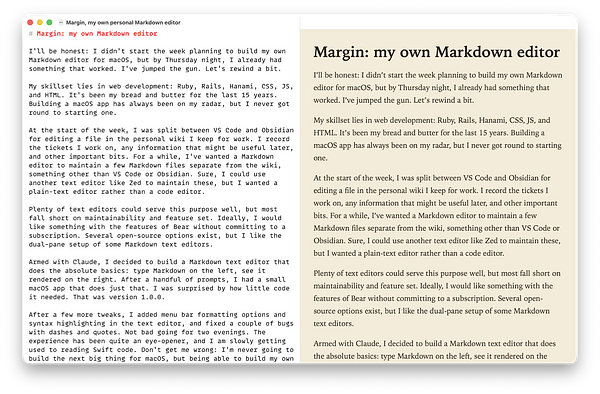
Use the Right Tool for the Job

When I started freelancing I used email to store lots of things my clients would send me. I would get emails with logins, scripts, web addresses and other important information. Where did I put it? In a folder of course in my email. There in lies the problem though. Email is for sending and receiving information. It’s where it excels. Where it doesn’t excel is in the storage and organisation of data.

Rather than be burdened with a tons of different folders I opted to have a folder for each of my clients. However, some clients generate a substantially greater amount of email than others do. With one particular client I get a handful of emails from them on a weekly basis. Over the last nine months I have accrued hundreds of emails from them, but finding some of the information has become difficult to do.

Email just wasn’t designed for storing and organising data. Yes emails can be indexed and searched using a number of different search parameters now, but it only searches on the information the email already has. Also not all email clients and services allow you to tag emails with any information you want. Then there’s the email itself. How do we edit it? By forwarding it to ourselves with some notes on it? Nice idea, but that in turn generates even more email. That’s really not what we want.

Today I spent over an hour clambering through a series of folders looking for important information so I can transfer it to Evernote. Armed with Evernote’s system I was quickly able to organise all the information from emails and tag them accordingly. Now when I need that information, I can not only search for it by the content of that information, but I can also search using the tags I have assigned to each one.

Tools have their uses. Email excels at sending and receiving information, but it’s an inferior contender to applications like Evernote. Do yourself a favour and start using the right tool for the job.

Why I'm Considering Evernote Again

Plain text files. I love them. They’re portable, easy to manipulate and work with hundreds of different tools. The only thing about them I don’t like is they are a nightmare to organise.

Unless you’ve got an indexing and search tool that does all the hard work of collating them together, you’re screwed. Now add to the mix that not all my files are in plain text. I’ve got an increasing number of documents that are PDFs, spreadsheets and even a few Word documents. It’s getting out of control.

In the past I used Evernote, but at the time I felt I didn’t have a need for such a tool. I didn’t have clients, invoices, projects, ideas, side-products, documents and other stuff all vying for my attention. This stuff needs to go somewhere. Somewhere that I can find it again.

So I’m considering Evernote again. I had no issues with it in the past other than I wasn’t using it to its full potential. There’s definitely a place for it in my list of everyday tools. I’ve got so much going on just now and the last thing I need is to be wasting time looking for documents or notes. I need this stuff and I need it fast. Let’s hope that Evernote can fit my needs.

Trello: A Restrospective

For the last two weeks I’ve been using Trello instead of Taskpaper for managing projects like Journalong. It’s really an experiment to see if I can get more things done with a visual system. Previously I was using lists in Taskpaper. It worked to an extent but anything that was at the bottom of list would frequently be forgotten.

So what is Trello?

Trello is a generic organisation and collaboration tool. Yes it sounds like a vague description, but Trello isn’t tied to any one particular workflow. Basically Trello is a simple workflow and list manager.

A Trello board consists of several lists like so:

An example of a Trello board

You create cards that you move through the lists from left to right. The lists themselves can be called anything you want and can be modelled after any iterative workflow that you can think of.

A list on Trello

The cards are used to represent individual items of work. It could be a task, a feature for a product, an article you want to write or even part of your wild scheme to take over the world.

A card in Trello

The cards themselves contain a title and a description but can also contain a set of tasks, attachments and even comments from yourself and other users collaborating on the same board.

How I’m using Trello

I’m using Trello in two ways at the moment.

Primarily I am using it to get my finger out on moving some development projects along. Journalong was first to get the Trello treatment and work on it as picked up again since I started using it. I use it mainly to mimick the Kanban way of software development as you can see from the board below:

My Journalong Trello board

As well as using Trello as a way of managing software projects, I’m also using Trello to manage my blog. In particular, my weekday posts to the blog and the writing process involved for each post.

My writing Trello board

I have a backlog of ideas that I want to write about. It ranges from software development to personal reflective pieces. At the weekend I pick five ideas from the backlog for the coming week and assign each of them a day of the week. Then I stick them in the drafts column and start writing each one.

As they are completed they get moved on to editing and then they are ready to be published. While the Journalong board is fine, I might change the process for my blog posts. I don’t want to get too bogged down in different steps for each post. I tend to write, edit and queues posts for my blog in the one sitting.

Great device support

What makes Trello great however is the support they have for different devices. It’s one of the few applications that I have installed on by my iPad and iPhone. Initially I was hesitant of how Trello was going to be implemented in iOS. However since using it for the last few weeks, It’s steadily becoming a favourite in my day to day apps category.

Trello on iOS

The iPhone UI is particularly nice as it lets you zoom in on a list within a board so that you can see all the cards for that list. Everything that you have available in the web UI is available here as well. Checklists, labels, attachment and comments are all there.

It’s free!

One thing that you thought I may have skipped over is that Trello is a free for anyone to use. I had reservations about this until it was pointed out to me that the makers of Trello, Fog Creek Software, wanted Trello to be a free product from the start.

There is a business plan that allows organisations to use Google Apps for authentication and to get all their users across without any pain. There is also paid plan called Trello Gold that adds a number of nice touches like changeable board backgrounds and bigger file uploads. The free version of Trello is ideal for most people.

A great visual tool

I’ve enjoyed using Trello over the last few weeks and I’ve decided to stick with it for managing projects and my writing. Whether I’ll use it for other things like sales leads, invoicing or anything else I can think of will be decided as and when I think I need something beyond a basic list to manage them.

I love the visual side of using a board. You get a clearer picture of where everything is and it means that you instantly know what you should be picking up next. Coming from a background of using mind mapping for a few years, I love systems that use visualisation to convey a message or intent. The nice thing about this tool is that it’s visual, portable and adaptable to just about any process that you can think of. It isn’t the silver bullet to everything, but if you’re having problems getting projects organized and trying to determine where the bottlenecks are then Trello just might be worth checking out.

This post contains a referral link for Trello for which I receive a free month of their paid plan, Trello Gold, for each sign up. If you don’t want to use the referral code, you can use this link to checkout Trello for yourself.

Getting to Know Projects in Sublime Text

When I started using Sublime Text 2, I didn’t use Sublime’s projects feature. This year though, I’ve started to really get to know my preferred text editor and since then I now save all my code as a project in Sublime. It really does have some great advantages and with a little time it can make working in Sublime a better experience for you.

Sublime’s projects are typical of projects in other text editors and IDE’s. You open the folder that contains your source code with Sublime and then you can save that source code as a project.

When you save your code as a project you end up with two files. The first is the project file which contains references to folders for your project, project based settings and build commands for your project. The second file is the workspace. This is simply a file that tracks what layout you’re currently using and what files you have open in each pane. Using the workspace file means that you can switch to another project, do some work and then switchback to your original project knowing that the layout and files you had open will be restored back to the state you left them in. Handy.

Opening Projects

Let’s start with opening projects. You can open a project from the command line by using the project switch from Sublime’s executable.

>> subl --project deathstar.sublime-project

Nice, but a tad too much to type. Rather than keying this out when I need to open Sublime, I prefer to alias the opening of a project file into a command that I can remember.

>> sds

Typing these three letters into my terminal to open a project is much easier than trying to remember where the project is and the correct switch for opening a project in Sublime. Now that we have our project open we can start tweaking the project file itself to make suit our needs.

There are three sections to the project file:

  1. Folders - You can define a single location for your project or multiple folders that make up a project. This also include filters on files and folders you might want to apply to each folder in this section.
  2. Settings - The settings in the editor can be changed on a project basis. If a particular language for your project requires different settings, e.g. tab size, you can define these here and the changes will take affect when you open the project.
  3. Build Systems - I tend not to use this, but you can keep a number of different terminal commands here that you can tell Sublime to execute without having to switch to the terminal.

Using Folders

Let’s take a look at the most important section which is folders. Although this section is only small it can make a big difference to the way you work with your project and with Sublime.

The project file is just JSON and is fairly easy to follow even if you don’t have that much experience with JSON.

{
  "folders":
  [
    {
      "path": "/Users/darthvader/code/deathstar-reactor"
    }
  ]
}

The path setting points to the folder that contains the files for your project. Most of the time you might just have one instance of this in your project file, but Sublime does allow you to have more than one folder in your project file.

{
  "folders":
  [
    {
      "path": "/Users/darthvader/code/deathstar-reactor"
    },
    {
      "path": "/Users/darthvader/code/deathstar-superlaser"
    }
  ]
}

I’ve been using multiple folders for a couple of projects now. I’m rewriting an application just now that uses multiple folders. For that project I included the old source code and the new source code in the same project so that I can refer back to the old code to lookup any old code.

Which leads us nicely onto names. Having multiple folders in your project can be confusing, especially when projects might have similar folder names or even the same name. To get round this, you can also define a name for each path in your project that will appear in the sidebar. This makes navigating code in your sidebar much easier.

{
  "folders":
  [
    {
      "name": "DeathStar - New & Improved Reactor",
      "path": "/Users/darthvader/code/deathstar-reactor"
    },
    {
      "name": "DeathStar - Superlaser x10",
      "path": "/Users/darthvader/code/deathstar-superlaser"
    }
  ]
}

Perhaps the most useful feature of the projects file though is the ability to exclude files and folders from your project. You are not going to need to see all the files and folders in Sublime when you are coding, so these filters are a great for excluding logs, temp files and other automatically generated files that are not typically needed in Sublime.

Excluding files can be done like this:

{
  "folders":
  [
    {
      "name": "DeathStar - New & Improved Reactor",
      "path": "/Users/darthvader/code/deathstar-reactor",
      "file_exclude_patterns": [
        "*.log",
        "*.pid",
        "*.tmp"
      ]
    }
  ]
}

And excluding folders can be done like this:

{
  "folders":
  [
    {
      "name": "DeathStar - New & Improved Reactor",
      "path": "/Users/darthvader/code/deathstar-reactor",
      "folder_exclude_patterns": [
        "tmp",
        "log",
        "solr"
      ]
    }
  ]
}

Switching Projects

Now that we have our project file setup we can get on with using it.

Because I now have a projects file for each project I work on in Sublime, I find it much easier now to simply switch to the project I need to work on, do the work, and then switch to another project. Switching between projects is as easy as Cmd+Ctrl+P if you’re working on a Mac or Ctrl+Alt+P if you’re working in Windows or Linux. This brings up a list of projects that Sublime nows about and lets you switch projects without leaving the application or returning to the terminal.

The benefit of this is that I only have one window open for Sublime and I can stay focused on the code that I am writing for that particular project. Having multiple projects open is distracting to me and puts me off my work.

I’m not currently using the settings or build systems for a project, but I am looking into running tests from within Sublime and adding these to my project files as build systems.

Getting to know how your tools work and making them work better for you is the key to getting the most out of them. Investing a bit of time in organising your code with Sublime’s project files make organsing and working with even multiple folder projects a breeze.

Switching to Trello for Project Management

I’m halfway through Curtis McHale’s book on turning your freelance career into a viable business and one thing that has become clear through reading it is my lack of progress on products and projects. Given that I only use a single list for everything, sometimes projects and ideas get skipped at the bottom of the list. It’s the out of sight, out of mind thing. If I’m not reminded of something on a regular basis, I usually forget about it.

In order to make better progress, I’m going to start using Trello for managing projects and future products. I’ll still stick a high level task on my master list relating to the project, but all the details for it will reside in Trello.

The reason I picked Trello for this was my familiarity with Kanban boards and some experience I picked up working in an agile team a couple of years ago. Basically the idea of Trello is that you move cards (or tasks) across the board from left to right until the card is complete. In my case my this will be features, bugs, marketing and admin tasks.

Cards move through the following lanes that are typical of Kanban boards:

  • Backlog - All cards start here. Cards are prioritised on a weekly basis with the next card to be done located at the top.
  • Analysis - We do some background work on the card. What does it involve?
  • Development - Let’s implement this thing with some nice tests and code.
  • Testing - We test it out in a secure environment.
  • Deployed - Once it’s tested and ready, we ship the code for the rest of the world.

Moving cards across the board is a great way to see progress being made, and also with work-in-progress limits, I can stay focused on one or two tasks at a time.

Also I’m currently using Trello with a couple of clients for project management, so the switch from their projects to my own when things are quiet is easy to do and I’ll already be familiar with the Trello environment. Seamlessly moving from client work to my own work is important. I don’t want to have to adjust too much to a different workflow.

My grass roots approach to work still stands with just a master list for capturing everything and scheduling actions in my calendar. I’ll capture a high level description of the project in my master list and defer the details down to cards on the Trello board. Any work I do will be blocked off in my calendar as just “Project X Work” and then when it comes to actually doing that work, I can pick up where I left off on the Trello board. When time runs out, I can leave a note on the card where I left off and move on without losing my place.

It all sounds well and good in theory, but putting it into practice over the next few weeks might not yield the positive results I’m hoping for. Still, I’ve got to give a try though, right?

My Sublime Text 3 Setup

The text editor. The programmer’s most important tool and the center of an ongoing debate that will occupy programmers for years.

I’m not going to debate on the best editor as that would be stupid. Everyone has their own preferences and needs. Vim does offer some nice advantages for those familiar with all the necessary keystrokes, but for my needs I just want a nice, extensible text editor that I am comfortable with. I chose Sublime Text 2 a couple of years ago and more recently I have started using Sublime Text 3 for my day to day coding needs.

The Essentials

Okay they’re not really essentials, but if you can’t even look at your text editor then you’re already hitting your first hurdle. Not only does Sublime Text allow you to change the colour scheme and fonts for the different languages you code in, but it also allows you to change the theme of the editor. A nice touch I think you’ll agree.

Theme

I settled on the Flatland theme a few months ago. Its non-gradient look might be a bit bare for some, but I do like this theme. It’s very dark and I prefer the dark background in my sidebar and tabs.

It also allows you to customise the height of the folders and files in your sidebar. By default Sublime does have a fair margin around these, but Flatland allows you to specify a smaller size, so that you can fit more into your sidebar.

Colour Scheme

Long before I started using Sublime Text 2, I was already using the Solarized colour scheme. I’ve stuck with it ever since and even use it as the colour scheme for my terminal. I prefer the dark version as the light version does have too much of a stark contrast with the Flatland theme.

Font

I’ve tried lots of fonts for programming with, but I find that Monaco, a font shipped with OS X, is best suited to my needs. It looks nice on my MacBook Pro and on my external monitor with just a small difference between the two screens.

Installed Packages

I do have a fair number of packages installed for specific things like Cucumber, RSpec, Rails and other language and framework specific needs so I’m going to list those packages that are independent of language and therefore get used on a frequent basis.

AllAutoComplete

Sublime Text 2 just came with autocomplete listings for the file you had currently open, so this plugin is a welcome addition as it includes all currently open files for your autocomplete listing.

SublimeGit

This package is a great package with plenty of integration with Git. It’s also the first paid package that I have used with Sublime Text 3. As I use Git all the time, this plugin been worth every penny.

GitGutter

GitGutter allows you to see which lines have been inserted, deleted and modified. It’s basically a diff for your editor. Little symbols appear in your editors margin to signify where code has been changed. At a glance it’s nice to see where I have modified a single file.

Origami

You can’t use Vim and not be impressed with being able to split panes with just a few keystrokes. It was one of the few things I have managed to remember from my many sojourns to the land of Vim. Sublime Text does have the same ability to split panes, but the keystrokes for this are difficult to remember.

Origami makes splitting panes much easier by providing easier to remember keystrokes for manipulating and navigating through panes as well as having the same commands available in the command palette.

MarkdownEditing

I handle a lot of files in Markdown. It’s the default markup for the majority of files that I create and use. Brett Terpstra’s MarkdownEditing package provides some sensible defaults for editing Markdown files. It also provides some handy keyboard shortcuts for manipulating Markdown files such as inserting headings, pasting links and adding footnotes.

CTags

Although Sublime Text has built in support for finding symbols in the current file, having ctags support just makes navigating between methods a lot easier. Rather than switching to a file and searching for the symbol, I can simply use ctags to pull up all symbols for the project navigate straight to the method I need.

So there we go, a quick run down of my Sublime Text 3 setup. If you’re looking for preferences files then I must do an update of these on Github, but I’ll provide a link here when that’s done in the next couple of days, so be sure to check back.

Giving Draft Another Chance

I’m writing this blog post on the web application, Draft. It’s been a while since I used it. I stopped using it a while back in favour of Byword, but the problem with Byword is that it just isn’t sticking as an app that I like using. Functionally it works like a dream, but there’s something about it that I don’t like.

So I’m giving Draft another go and already I’m enjoying using it. Yes it does do a few things extra than Byword, but that’s not why I am using it again. Is it the preference for a web application over a native application? I don’t know, it could be.

All I know is that if you’re not happy with the tools you have then you should find the tools that do make you happy while you work.

My Development Tools - 2013 Edition

Here is this years list of tools that help me on a day to day basis in my role as a web developer. There are other tools I use throughout the day for social networking and other things, but I’ve purposefully left these off the list, as I don’t deem them necessary in helping me do my job.

Hardware

My hardware selection is very minimalistic, at least I think it is. I’ve read about various setups from other developers that include multiple machines and usually more than two monitors. I stick with the view that I need only one machine and that I need it to powerful enough to build web applications but also portable enough that I can carry it with me.

  • MacBook Pro - I previously owned a black MacBook that I have used as my main development machine for over 4 years, but owing to it’s lack of expandable memory and that it won’t upgrade OS X to anything beyond Lion, I decided that I needed something new. At the start of the year I plumped for a new MacBook Pro and I’ve been amazed at the capabilities of it as my main development machine. Also the Retina display is rather purdy.
  • Mighty Mouse - Still trying to get my head round the gestures for this, but needless to say, it’s a very comfortable mouse to use.
  • Apple Keyboard - I’ve had this keyboard for a number of years now but I’m starting to find it a tad small to use. It’s the actual size of the keys I find too small.
  • Asus Monitor - Just a 24” external monitor. Nothing fancy.
  • External Hard Drive - At the moment I have a Seagate 250MB external hard drive. It’s sole use is for my Time Machine backups.
Hardware nice to haves

These have been on the nice to haves list for a while but I think I’ll consider at least one of these as a purchase before the end of the year.

  • A NAS - To help with the day to day grind I have a massive iTunes library that I code to, however it is taking a lot of space on MacBook. I would love to have extra storage at home that I connect to easily and just pick my music and photos from it.
  • A better keyboard - Not sure what I am looking for in terms of a keyboard, but one definite criteria I have is that it is slightly bigger than the standard wireless Apple keyboard.

Software

This is the software that I use every day. These are the essential applications I need to work. If I had nothing else in terms of software, then these applications would be all I would need.

  • Mail - Newsflash, well at least for me it is. Mail, the default email client with OS X, is actually a great email client. I previously used the Gmail web client for email but since going Google free, I’ve been surprised by how much I enjoy using Mail.
  • Firefox - An open source browser that is gradually making improvements in performance, but it’s mostly because it’s open source software that I like using Firefox.
  • iTerm2 - This is my preferred terminal emulator as it provides more functionality over the terminal emulator provided with OS X. One particular nice feature is the splitting of terminal windows into panes.
  • Sublime Text 3 - I’ve used Sublime Text 2 for a couple of years and I immediately jumped to the next release when it was available.
  • Dropbox - I keep everything in Dropbox. I probably don’t need to. Over the last few weeks though it’s fallen into my “Do I need this service?” category of thoughts. I’ll be assessing Dropbox closely over the next few weeks.
  • Skype - Everyone has Skype so it makes sense to use it for calls with clients. Very handy as well for group calls.
  • 1Password - Who wants to remember all their passwords or write them down or make them the same for all your logins and sites? Not me, but I still can’t believe it took me to this year to start using 1Password.

While I do use the following software every day, these are more like nice to haves rather than essential. Still, they make me more productive every day, so I’m glad I have them.

  • Alfred - A very nice replacement for the default Spotlight application launcher. Also I’ve started to see the power behind extending Alfred to do custom searches on things like my Pinboard bookmarks.
  • Fantastical - A little application that sits in my menu bar and allows me to update my calendar easily. The great thing about Fantastical is that I can quickly add meetings and deadlines to my work calendar.
  • RSS Notifier - I use Feedbin for following blogs, but for service updates from Amazon and Heroku, I use this application.
  • Divvy - Great little application for managing your windows. I have a few shortcut keys setup to resize my windows accordingly.
  • MultiMon - Divvy doesn’t let me move windows from my MacBook to my external monitor which is where MultiMon comes in. Great little application.
  • Broom - Diskspace is a premium at the moment, so while I am reviewing different external storage options I have Broom to let me know when folders get too big.

The Web

A web developer’s playground. Just a small selection of the many services and products that I use online.

  • DuckDuckGo - I’m still sticking with this as my preferred search engine. Yes it does lack the comprehensive results that Google has, but I’m finding that if I don’t find anything on the first page of results with DuckDuckGo, then I do have ready to roll searches for StackOverflow.
  • Github - My preferred source code management tool. Nothing to fault here. Easy to manage repositories and plenty of collaboration tools for both private and public projects.
  • Heroku - I’ve worked with the Heroku platform for over three years now and I love its simplicity. Might be more pricier than other options but that’s the trade off when you don’t want the hassle of being a sys admin.
  • LinkedIn - I closed my LinkedIn account a couple of years ago only to find that I actually needed it at the start of the year to get myself marketed as a freelancer. Jury is still out on it’s usefulness but I am trying to make more use of it on a daily basis.
  • FreeAgent (Referral link) - I’ve only been using FreeAgent for six months now but it’s already paying for itself in terms of usefulness. Having your accounts in order as an independent contractor is a necessary evil, but the FreeAgent application does such a great of job making mananging my income simple.
  • Instapaper - Reading development articles is part of development life if you want to stay up to date on the ever changing Internet.
  • Pinboard - You never know when you are going to need that article on nested resources on Rails or that article on implementing ‘Remember Me’ functionality in Sinatra. Good job I keep a nice archive of the articles I read and find useful with Pinboard.
  • Feedbin - My new RSS reader of choice. Check out a more complete review by myself here.
  • Gauges - Another service that I picked in the move away from Google. Okay it doesn’t have the number of different metrics that Google Analytics has, but it provides all the information I need in a simple and easy to read interface.

Backups

One backup is good, two is better. I’ve been lucky so far, but I think I need to beef up my backup strategy.

  • Time Machine - It would be sort of crazy not to use Time Machine if you own a Mac. Background backups without the fuss. Still, it shouldn’t be your only form of backup.
  • Dropbox - Which brings me to Dropbox again. I keep backups of a few folders in Dropbox so that if the worse was to happen with my MacBook Pro, I could be at least up and running on another machine regardless of which operating system it is.

There was more to this list but I had to limit it to just my essential tools. If I included all the extensions, addons, plugins and other tools I used, this post would just be too long to read. I wanted to just give an overview of a typical set of tools that web developers use.

My iPhone Setup

I wanted to share my apps setup on my iPhone for two reasons. Firstly, I wanted to see if any one had similar setups on their devices and secondly, it’s something worth writing about.

So how do I have my iPhone setup?

Right from the first day I got my iPhone I had my own specific setup in mind. The setup I’m describing is very similar to the setup I had on my previous Android phone. The first screen, the home screen, on my iPhone is limited to apps I use on a daily basis.

Home screen

For a long time now I’ve stuck to the same types of apps on my home screen with just a few changes to the actual apps in the last six months. Here’s what’s on my home screen just now.

  • Fantastical - I started using this a few months ago, was previously Google Calendar synced to Calendar app.
  • TaskPaper - I’ve tried Wunderlist, TodoList, Things and others. I keep coming back to TaskPaper due to it’s easy to use UI and use of a flat text file for my lists.
  • Reeder - I started using within the last month, I was previously using Feedly synced to Google Reader.
  • Path - I’ve had this on my phone since day one.
  • Forecast - Started using this year.
  • Felix - Started using this year, I was previously using Wedge but Felix has really came on in the last six months.
  • Instapaper - I’ve had this on my phone since day one.
  • Pop - Started using this year at the recommendation of Patrick Rhone. It’s really handy as just a scratchpad or dumping ground for thoughts and ideas.

These are the apps that I use every day. I purposely keep this screen limited to just eight apps as it leaves some screen space so that I can see my wallpaper if it’s a nice photo.

On the second screen is the rest of the apps that I use but instead they are categorised into folders.

Folders screen

I initially had these folders grouped by the verb that describes the action of each app after reading about the idea on Gina Trapani’s Smarterware blog, but grouping them by a verb was difficult for some of the apps. Instead I just a name them to something that makes sense to me.

  • Schedule - Scheduling and timekeeping tools.
  • Network - All my App.net apps. It’s the only social network I actively take part in now.
  • Words - Writing and reading apps.
  • Bytes - Apps for services that I use online like Trello, Github and Pinboard.
  • Photos - Camera apps and photo albums.
  • Listen - iTunes, Instacast and other apps related to consuming visual and audio media.
  • Shop - Finance related apps.
  • Setup - Setup and connectivity apps.
  • Games - Handy when we’re out and about and I need my oldest to sit at piece for a few minutes.
  • Travel - Hardly used.

I’ve tried in the past to limit myself to eight folders on this screen however it just wasn’t possible. I have enabled most of the notifications on this screen as a reminder that I have things that need to be done or reviewed. I very rarely switch to this screen unless I have a notification for one of these apps. Bookstand is also sitting on this screen awaiting the release of iOS 7 when I can finally put it in a folder.

I’ve had this setup on my phone for some time now, and I’m very unlikely to change it. I’m quite selective with my apps and I tend to stick to one app for one type of function. The only exception to this is the number of writing tools I have on my phone. I’ve had PlainText and Pop installed for some time, but I have been trying out Drafts recently.

A Day for Making Improvements

I’m a terrible person for saying I’ll do something, then I never do it. I’m not talking about the big important things like completing client work or picking up the kids. I’m talking about making improvements in my work flow. Adding little things here and there to save time. Well no more!

Here’s three things I did today to make my day a little easier.

Installed Instacast for Mac and Became an Instacast Member

Instacast is awesome. My buddy in British Columbia, Curtis, put me onto it at the start of the year and it’s been a great product for managing my podcast subscriptions. I think the best two features are the syncing between devices and the playback of podcasts at different speed. I’ve got my playback set at 1.5 times normal speed just to get through the podcasts that little bit quicker.

I have Instacast installed on my iPad but having that, a laptop and a monitor on my desk means I have little space for anything else. When I first read about Vemedio releasing an Instacast for Mac app, I removed the Instacast app from my iPad but didn’t get round to installing the desktop app. I resolved this today.

It was about two months ago that I decided that I wanted to support the Instacast product by becoming a member. Today I took a senator membership with Instacast because I want to support a great product. Just $10 per year as well. Bargain.

Installed aText for Text Expansion

Back when I was a .NET developer I used a text expansion tool called AutoHotKey. I used it for everything. After moving to Ruby I didn’t look for a replacement text expansion tool for my MacBook.

One of the things that I frequently run into problems with is using templates for Markdown files. I use a number of different tools depending on what I’m writing. Being able to generate the template for the file regardless of what tool I am using would be good.

I installed aText due to the recommendation on the Lifehacker website. This should definitely make writing posts for my Octopress blog easier as well as anything else I can think of.

Installed Broom for Disk Space Analysis

Space is a premium on my MacBook Pro at the moment. While I wait for funds to be released so that I can buy a NAS drive for the house, I have to keep and eye on how much space I use.

I installed Broom (Mac App Store) and straight away I was able to save myself over 20 GB in disk space.

I need to keep more of an eye on the tools that I use and should use to make my day easier.

The monthly services bill

This morning I was curious about the amout of money I was spending every month on subscriptions for products and services on the internet. It turns out that I don’t spend huge amounts of money on products and services. Here’s where my money is going on a monthly basis:

All in they come to just under £30 per month. The amount I am paying out each month is less than I thought, which means I have a few slots left for additional products and services. I’m already looking at taking out subscriptions to Treehouse to improve my iOS development skils, Instacast to sync my podcasts between devices and a Railscasts pro subscription.

What apps, services and products are you subscribed to on a monthly basis, and is there anything you are considering taking a subscription out on in the future?

Are you automating?

Automation. The programmer’s best friend. Programmers automate as much as they can. Setting up a new computer, building servers and testing software are just some of the areas where we like to automate things. We hate typing in four commands where one will do. Automation saves so much time.

Not everyone is a programmer though. So how can you automate your interactions with your computer so that you’re not doing as many manual tasks?

Check your application settings

Lots of applications and services now integrate with other applications and settings. Instapaper for example allows me to save the articles that I like to my Pinboard account. After I set this up in the Instapaper settings page, I can then like an article and it will be saved to Pinboard for me. This is just a small example of the automation you can achieve. Baked in settings to applications is great but what if you want more automation?

Checkout IFTTT

IFTTT is a service that allows you to create recipes for the different services that you use. It will then run these recipes when they are triggered. Each recipe contains a trigger and an action. When the trigger is fired the respective action is carried out.

An example of this in action is the
monthly redux blog post that I put out at the start of each month. It is a list of the previous month’s blog posts on my blog. Rather than writing this by hand though, I can let IFTTT do the work for me.

When my recipe detects a new item on my blog’s RSS feed, it then writes the title of the blog post and a link to it to a text file in my Dropbox account.

At the end of the month I cut the contents of this file and paste it into my blog’s content editor and use it as the content for my new monthly redux blog post.

In order for IFTTT to work effectively, it needs to have access to the services that you use. You may not be comfortable doing this, but I find that it’s a great way to automate tasks that I would normally do by hand in the past.

Being able to defer manual tasks to services that automate them for you saves you time. Not only that, it lets you get on with more important tasks. This week watch out for manual tasks that you could be automating. Even if you can save a few minutes off your day, it’s going to add up over the year. And that’s time not wasted.

​

I stopped using Wunderlist for maintaining lists last week. It just didn’t fit with how I worked. I wanted something a bit more low tech, so I switched back to a master list in my moleskine and index cards for tracking the stuff I want to do that week.Since I started freelancing though, I’ve been spurred to keep my development knowledge up to date and I’m also interested in getting some side projects off the ground. I also have a growing client list to maintain. This means more actions getting added to the master list on a daily basis. Maintaining it in my moleskine was becoming a real struggle as it was strewn across a couple of pages. I still needed something that let me track my master list in a digital way, without it becoming too technical.

Enter TaskPaper.

TaskPaper is a todo list that stands apart from many todo list applications in that it uses a plain text file for your list rather than a database or remote data storage. I’m a big fan of simple software that uses flat files for backend storage, especially when that software can link to your Dropbox and let you sync it across all your devices.

Taskpaper is like an editor but it also had nice features that let you interact with your list easily. The best of a todo list and a plain text file really. TaskPaper is also heavily influenced from Dave Allen’s GTD system. TaskPaper allows you to create projects in your list and also attach tags to actions.

It’s another change in the workflow, but I just want something that works and doesn’t get in my way.

Simple tools

A week ago I finally got round to doing some little jobs around the house and one of them was taking a couple millimetres off the top of a door so that it would shut correctly. As it required only a small amount off the door, I opted against using a power tool.

When Jennifer’s parents moved to Canada over a decade ago, her Dad left some tools for me that he didn’t want to take with him. One of them was a plane that belonged to Jennifer’s great-grandfather. For those that don’t know, a plane consists of a block with a projecting steel blade. It is used to smooth wooden surfaces by gradually removing shavings away from the surface of the wood.

Intrigued as to whether it was still working I dug it out from the toolbox and started working on fixing the door. Surprisingly the blade of the plane was still sharp enough to take just enough wood off the top of the door for it to close properly again. This plane is at least 30 years old and still works. It got me thinking about the choice of tools that programmers have when it comes to working with code and how long these tools last.For some years now, the text editor has been my choice of tool when working with code. I used TextMate for Ruby coding for about four years before I switched to Sublime. Yes, the keyboard shortcuts might have changed, but essentially, these two are the same tool. Just plain old text editors.A text editor is such a simple tool to use and many of the more popular text editors have a history that goes back at least five years. Look at Notepad++, jEdit and others. They’ve all been around for years. Even at over 20 years old, Vim is undoubtedly the first choice of text editor for many programmers.

The other choice developers have is an integrated development environment or IDE for short. These are the power tools of the software development world. IDEs are development tools that are designed to aid developers by providing built-in shortcuts that increase programmer productivity, but where they fall short is that they are tied to the programming language or platform they were designed for.

Being tied to a few programming languages or a platform is very restricting. Inevitably IDE’s get releases every couple of years to take advantage of the latest new features from the programming languages and frameworks they were designed for. Re-learning the ins and outs of these news tools every couple of years is the kind of time I’d rather not waste. These tools are too complicated in my book.

That’s the beauty of simple tools like our plane, like our text editor. They last a long time. Just like the plane made fixing the door a simple task to do, the text editor makes working with code a simple task. You just have to know how that programming language works in order to make the best use of your chosen text editor.

There’s a lot to be said for the simple tools we use.

What is Markdown?

Lifehacker has all the resources you’ll need for using Markdown.

There’s hundreds of apps out there that are prepared to lock in your data. But why sacrifice access to your data? Look at moving away from these apps that lock in your data and start using plain old text files for your to do lists, logging, writing and blogging.

Plain text and Markdown is much more flexible and you can use a wider range of tools to manage all your Markdown documents. Add a cloud storage service like Dropbox and you can have your files with you everywhere you go!

For me, web apps still rule

Like most people I’ve spent my fair share of money on apps for the iPad, but recently I’ve found that I’m just not using them that often. The problem is that while I like the apps themselves and chose them for their functionality and their ease of use, the freqeuncy with which I use them just isn’t right. When was the last time I wrote anything with iA Writer? I can’t remember.With web apps though, I’m finding that they are more accessible to me during the day at work and at night when I am at home.

I looked at a number of apps for keeping a journal before I ended up writing Journalong, and the same goes for writing. I managed to write a whole book with 750words.com. The only reason I didn’t use it every day after NaNoWriMo was the fact that the pressure to write 750 words became a bit too much. My journal is for every day thoughts, but typerighter is for taking those thoughts and fleshing out something more fuller and richer.

Web apps like Typerighter and Journalong also work well on my mobile devices. I don’t want separate apps for each device I have.Don’t get me wrong, native apps have their places where they don’t require a web interface. However if a service has a web interface with no need for a native app then I will use that service as it’s web interface is easily accessible from the number of different of platforms and devices I use on a daily basis.UPDATE: Since publishing this, I’ve deleted my Typerighter account in favour of writing using Sublime Text 2. Typerighter is a great product if you need a minimal writing interface, but I’ve started using ST2 for writing as it’s easier to pick up my drafts which are kept in Dropbox.​ Maybe I’ll go back to Typerighter when they let you connect to your Dropbox.